Use a dedicated test workspace first
A completed checkout creates real sale, payment and stock records. Inventix does not provide a guarantee that a practice sale is excluded from your live reports. Use a separate test workspace while learning the workflow.
Prepare one recognisable product
Create a product with a known code, price, standard cost and starting quantity. Choose the intended store and check its taxes before opening POS.
Set up the store and add the product.
Test the entire counter flow
- Sign in with the staff account that will use the counter.
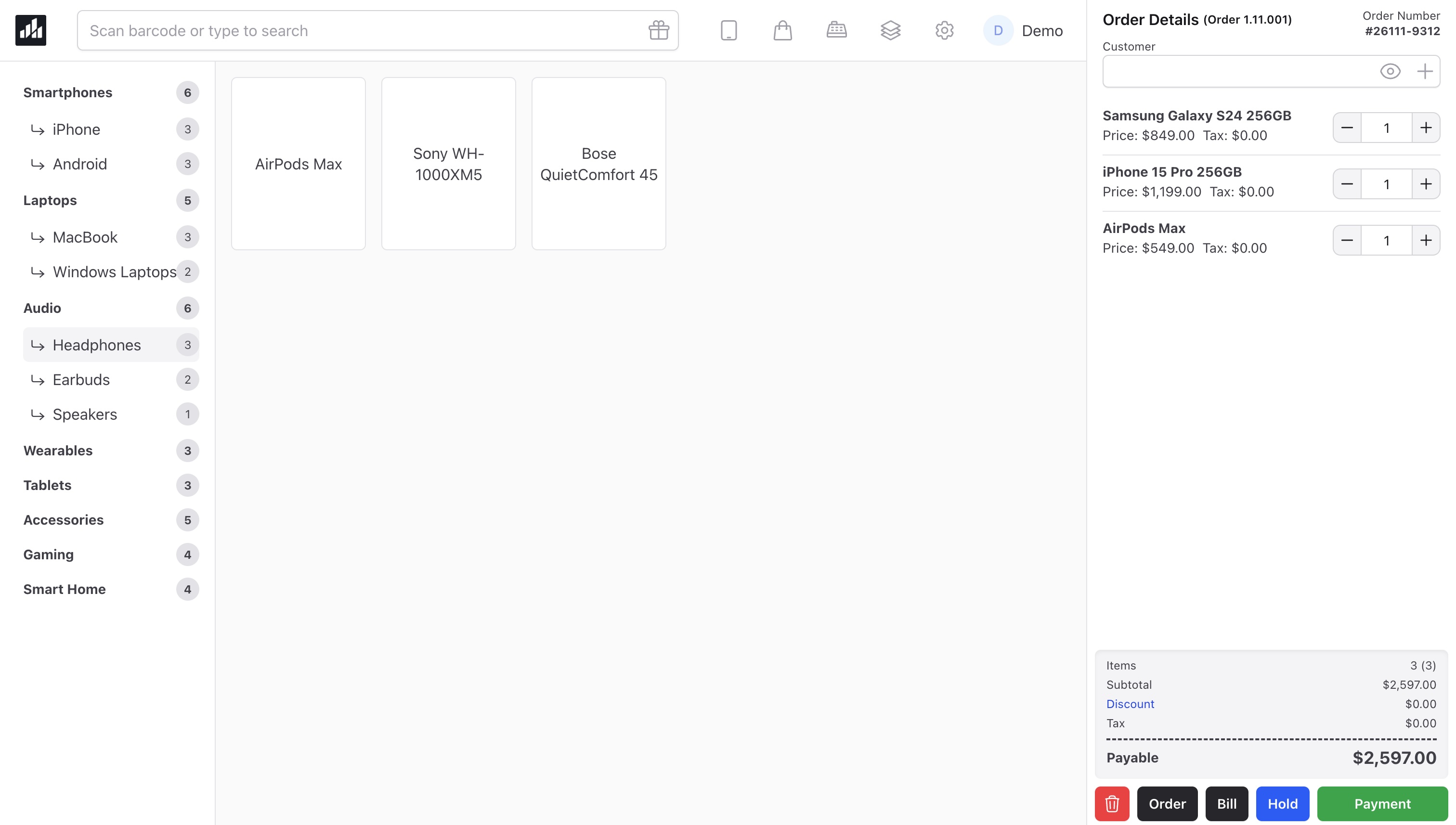
- Open a register and scan the product once.
- Check that the intended item and quantity appear.
- Record a cash payment and inspect the receipt.
- Find the sale and payment in the reports and confirm the stock change.
Test equipment rather than assuming compatibility
Print on your actual receipt paper and scan a label made by your actual printer. Check scanner terminators, browser print settings and any local device bridge. Device support must be established for your equipment; a browser print dialog alone is not proof that a drawer or printer works.
Keep terminal payments separate
A manually recorded card payment in Inventix does not charge a card. Test your external terminal through its own approved process and reconcile its reference with the sale. Do not confuse shop payments with Lemon Squeezy subscription billing.
Know the interruption procedure
Offline sales and later automatic replay are disabled. Staff should pause and reconcile the saved record after a connection problem, not repeatedly submit checkout.