Guides and page contents
Search all guidesBefore you startAdd a productRecord starting quantitiesExpected resultProduct limitsRelated guidesAdd products and opening stock
Set up product codes, prices, variants and the quantity your store actually holds.
Before you start
You need permission to create products and access to the correct store. Have a unique product code, selling price, standard cost, unit and tax choice ready. Confirm your business currency first.
Add a product
- Open Products > Add New Product, or Add product in Business setup.
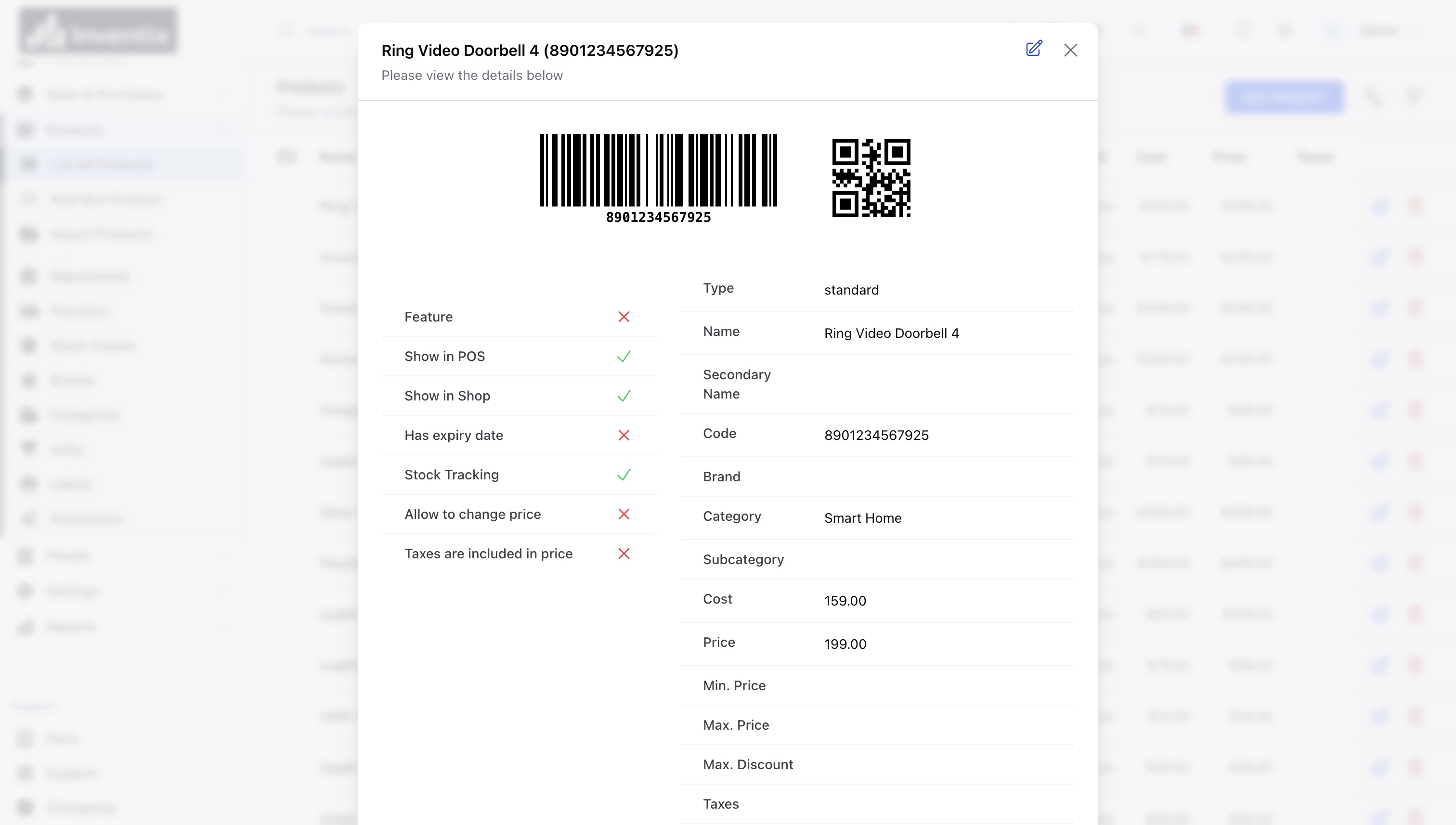
- Enter the name and product code. Select the category, unit and product type that match the item.
- Enter the selling price and standard cost. Review the tax selection before saving.
- For a product with options, add its variants and check each variant's code and price.
- Save the product and find it in Products > List All Products.
Record starting quantities
Creating a product is not the same as receiving stock. In Business setup, choose Record opening stock or Receive a purchase. Select the correct store and record the quantity once.
For existing products, do not upload starting quantities again as a way to correct today's stock. Use an adjustment or a checked stock count so the change remains traceable.
Expected result
The product appears in the catalogue with its own code and price. Stock-tracked items show the quantity recorded for that store. A sale should use that product and reduce the appropriate store quantity.
Product limits
Standard products, services, variants and plain-component bundles are supported. Serial-number stock transactions are not available. Purchase expiry metadata does not provide automatic expiry blocking or expiry-first stock allocation.
Continue with product imports, barcode labels or stock counts.
Still stuck? Tell us what happened. Never include your password or recovery codes.