Guides and page contents
Search all guidesBefore printingMake labelsScan at checkoutIf the wrong item appearsRelated guidesCreate barcode labels and scan products
Use product codes consistently from the shelf to the checkout.
Before printing
Each product or variant needs the correct code. Check for duplicates and preserve leading zeros. A code that is valid for one barcode format may not be valid for another.
Make labels
- Open the product label or barcode action for the products you want to label.
- Choose the label format and quantity, then preview the result.
- Check the code, displayed price and readability. Print one test sheet before printing the full batch.
- Scan the printed code into POS and confirm that it selects the intended product exactly once.
The preview validates codes and uses current prices. Your actual printer, paper dimensions and scanner settings still need a test on your equipment.
Scan at checkout
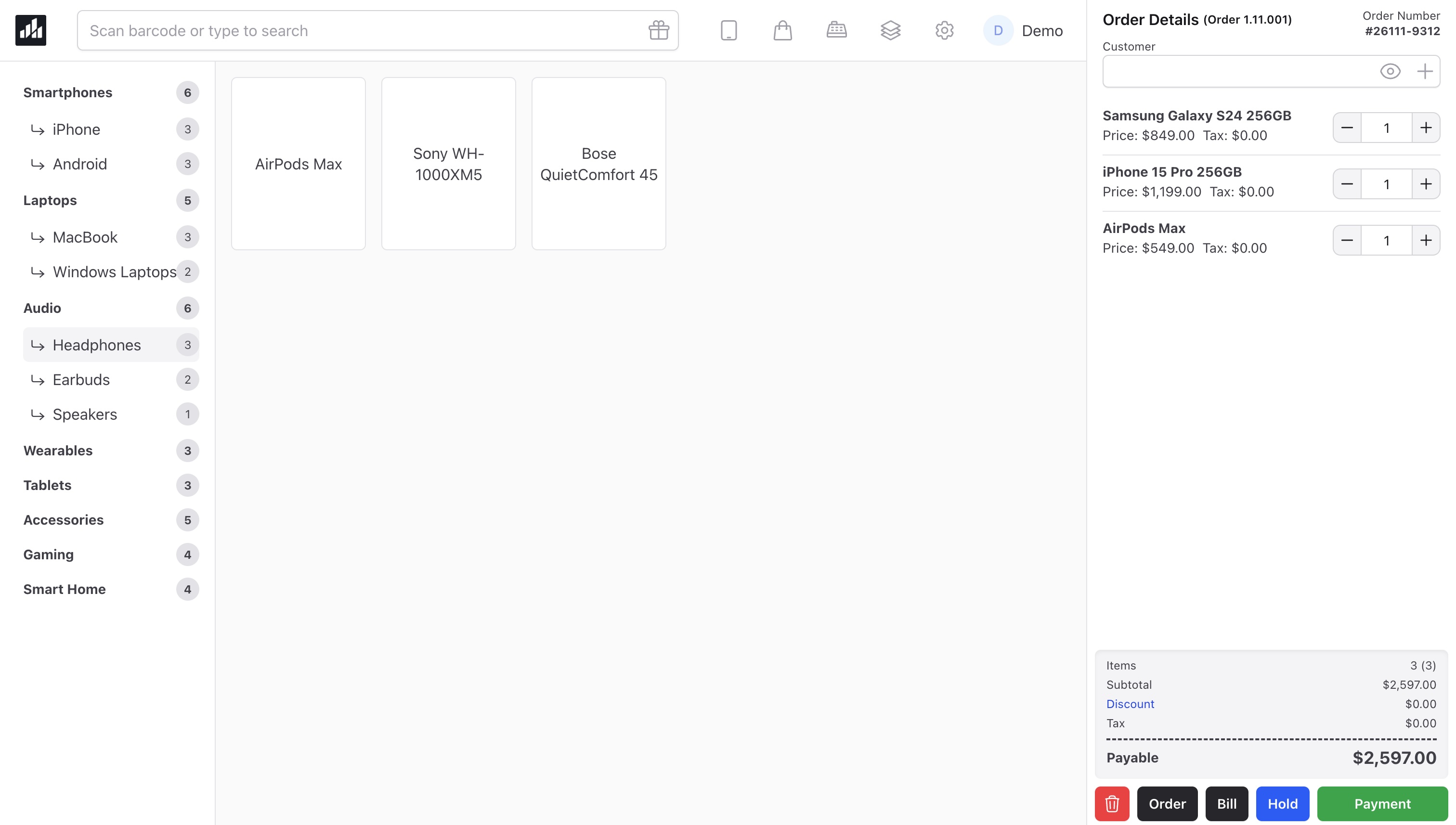
In POS, focus the field labelled Scan barcode or type to search, then scan the code. Check the product and quantity in the cart. You can also type the code or search by product name.
If the wrong item appears
Check the product and variant code, selected store and scanner output. Do not give unrelated products the same code to bypass a failed scan. If a scan adds twice, stop and check the scanner's terminator settings before continuing.
Browser access on a phone does not guarantee camera scanning or native scanner-driver support. Review the checkout steps.
Still stuck? Tell us what happened. Never include your password or recovery codes.