Guides and page contents
Search all guidesCreate the saleCheck the invoiceTaxes and document datesQuotations and deliveriesCorrect a problemRelated guidesCreate and check a sales invoice
Keep customer details, sale lines, taxes and payments on the same record.
Create the sale
- Open Sales & Purchases > Add New Sale.
- Select the store and customer. Review the document date.
- Add products, units, quantities and any applicable variants.
- Review the permitted prices, discounts and configured taxes.
- Save the sale, then open its invoice and payment history.
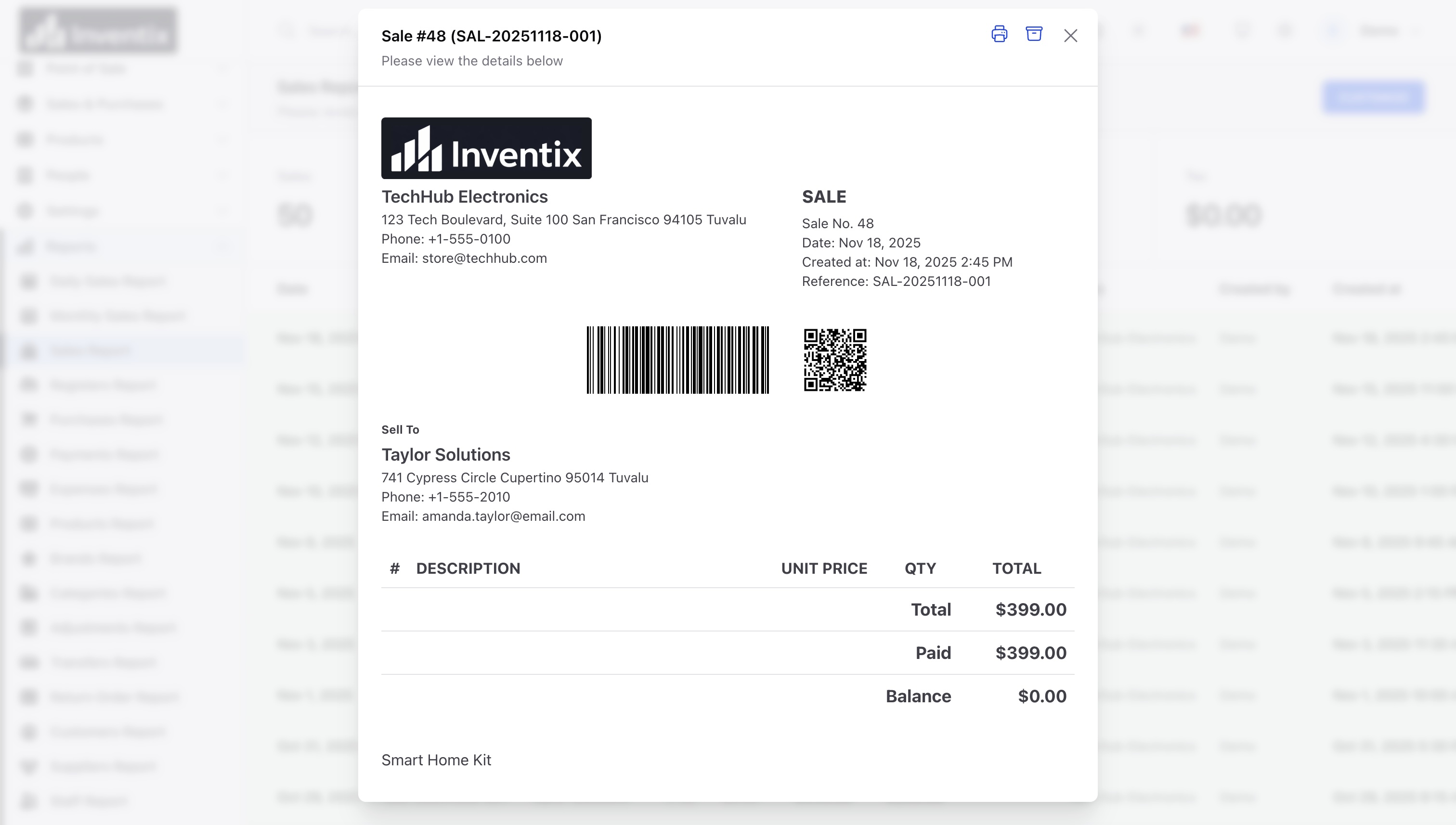
Check the invoice
Confirm the customer, reference, date, lines, total, amount paid and balance. Review a printed or downloaded copy before sharing it. Available output actions depend on the screen; not every report has the same PDF or spreadsheet export options.
Taxes and document dates
Inventix applies the rates you configure. It does not choose your tax obligations, automatically calculate every regional rule, or provide certified fiscal reporting.
Reports use the document date for the relevant totals. Changing your business timezone does not rewrite dates already recorded on invoices.
Quotations and deliveries
A quotation does not move stock. A delivery must match the sale, customer and address in the selected store. Do not create a second sale just to produce a delivery document.
Correct a problem
Use the permitted sale correction or return workflow and recheck stock and balances. Do not delete history simply to make a total look right. See returns and payments.
Still stuck? Tell us what happened. Never include your password or recovery codes.