Guides and page contents
Search all guidesChoose the report for your questionFilter before comparingSales are not cash collectedUnderstand profit figuresDownload supported reportsWhen a total looks wrongRelated guidesRead sales, payments and store performance
Understand what changed, what was collected and which totals you are comparing.
Choose the report for your question
Use Reports for the available sales, purchases, payments, expenses, products, returns and other operational reports. Start with the question you need to answer, then choose the matching report.
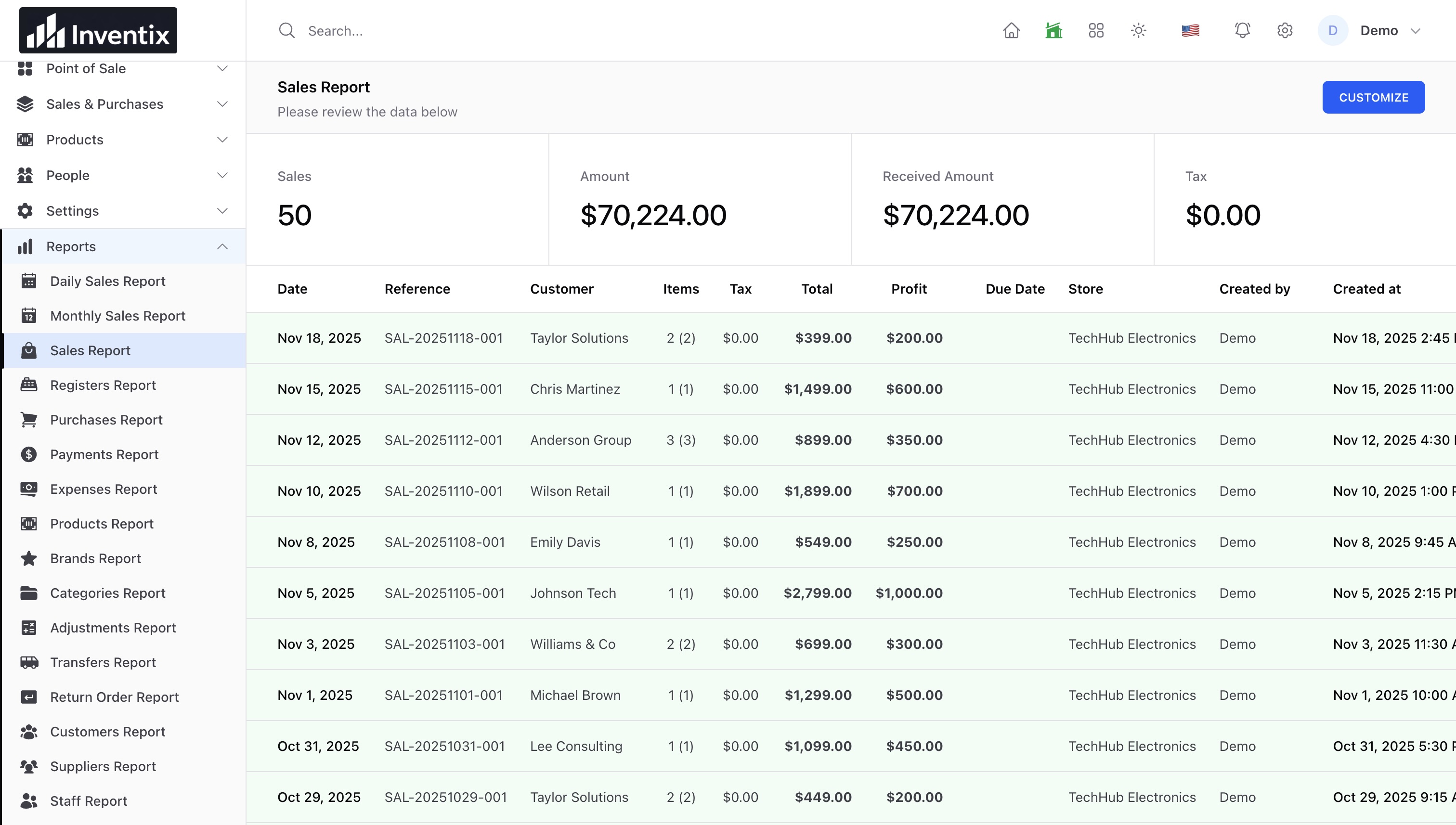
- What did we sell? Open the sales report.
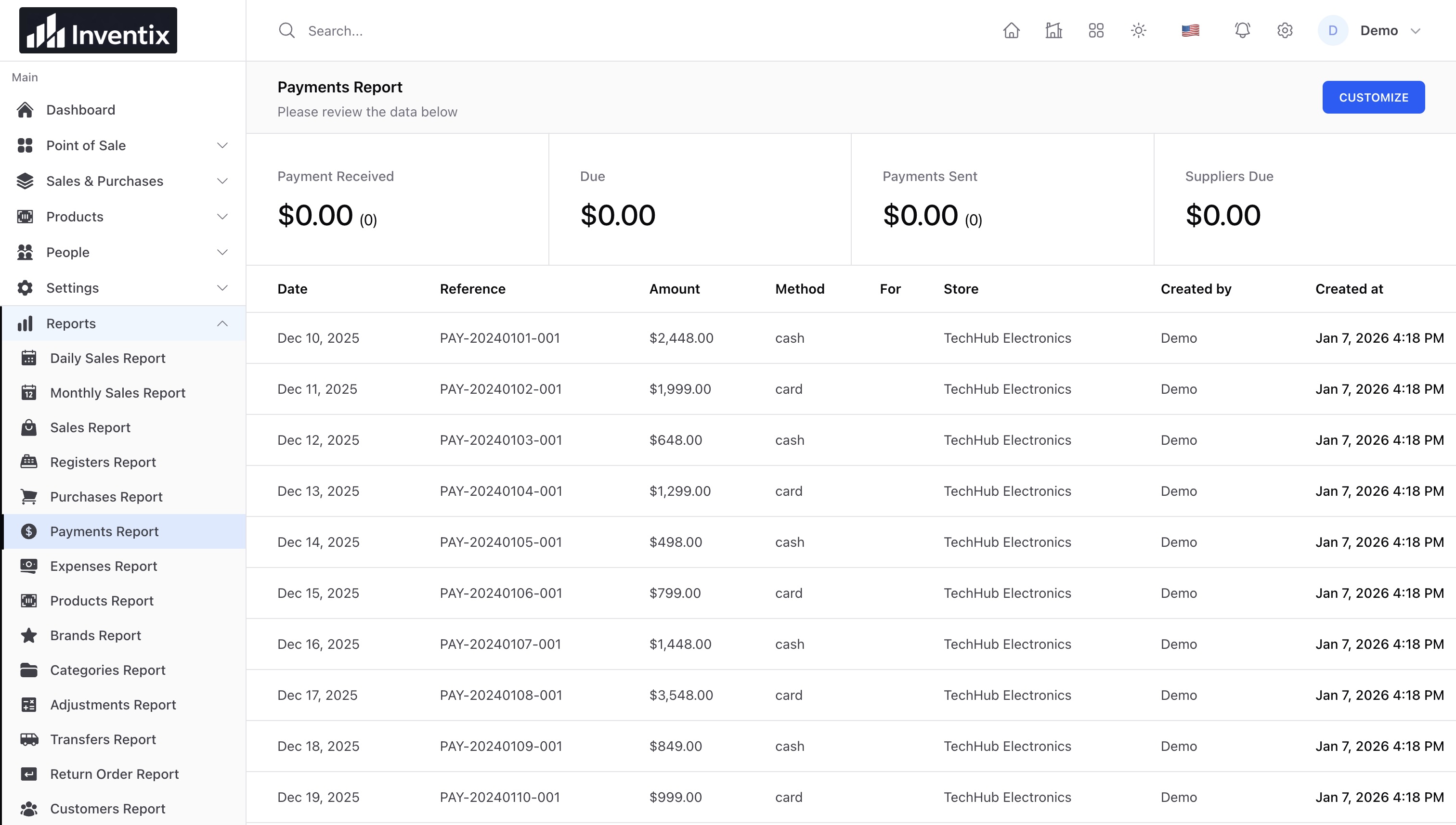
- How much money did we receive? Open the payments report.
- What did we buy or spend? Check purchases and expenses separately.
- What was returned? Review return orders alongside the original documents.
Filter before comparing
- Open the report and choose the relevant store and date range.
- Apply the available customer, supplier, staff or status filters for that report.
- Review the rows behind the total, not only the summary.
- Open a sample document and check that its date and amounts explain the row.
Voided documents are excluded by default. Report totals use document dates for the relevant lines, which can differ from the day a record was entered.
Sales are not cash collected
A sale can be partly paid, paid later or returned. Compare sales with payment records and outstanding balances before concluding that a difference is an error.
Understand profit figures
Costs use the configured standard product or variant cost captured on the sale. Changing today's cost does not recalculate historical sale costs. FIFO, LIFO, weighted-average and expiry-first costing are not available.
Use these figures for operational review; Inventix is not a certified accounting or tax-compliance system.
Download supported reports
Sales, purchases, payments, expenses and return reports provide filtered CSV downloads. Downloads are limited to 50,000 rows; narrow the date range or filters when the report is larger. The system must not silently truncate your export.
Not every report offers PDF or Excel output. Custom report builders and scheduled email reports are not available in this release.
When a total looks wrong
Check the selected store, document dates, void status, returns, partial payments and standard cost. Compare a known sale with its payment history before retrying or editing records.
Continue with sales invoices, payment recording or support.
Still stuck? Tell us what happened. Never include your password or recovery codes.