Set up your business before the first sale
Choose your store details, currency, units and staff access before real transactions start.

Start with the setup checklist
Open Business setup after signing in to your workspace. Create your first store and use the checklist to work through products, starting stock and the first sale. You do not need to set every optional preference before trying a small, representative workflow.
Get the business details right
Use the business settings and store form to check the trading name, address and contact information that should appear on documents. Confirm the currency and number formatting before recording transactions. Changing how a value is displayed is not the same as converting the underlying financial records.
Set the product units, categories and tax options your store needs. Ask your accountant about local tax treatment. Inventix does not certify every country's invoice or fiscal-device requirements.
Add a few real products
Create a small group of representative products, including an option or unit you actually sell. Record starting quantities once for the correct store, or receive the first supplier purchase when goods arrive.
Use product imports if you already have a catalogue. Start with a sample and confirm codes, prices and quantities before bringing over everything.
Set up the people who will use it
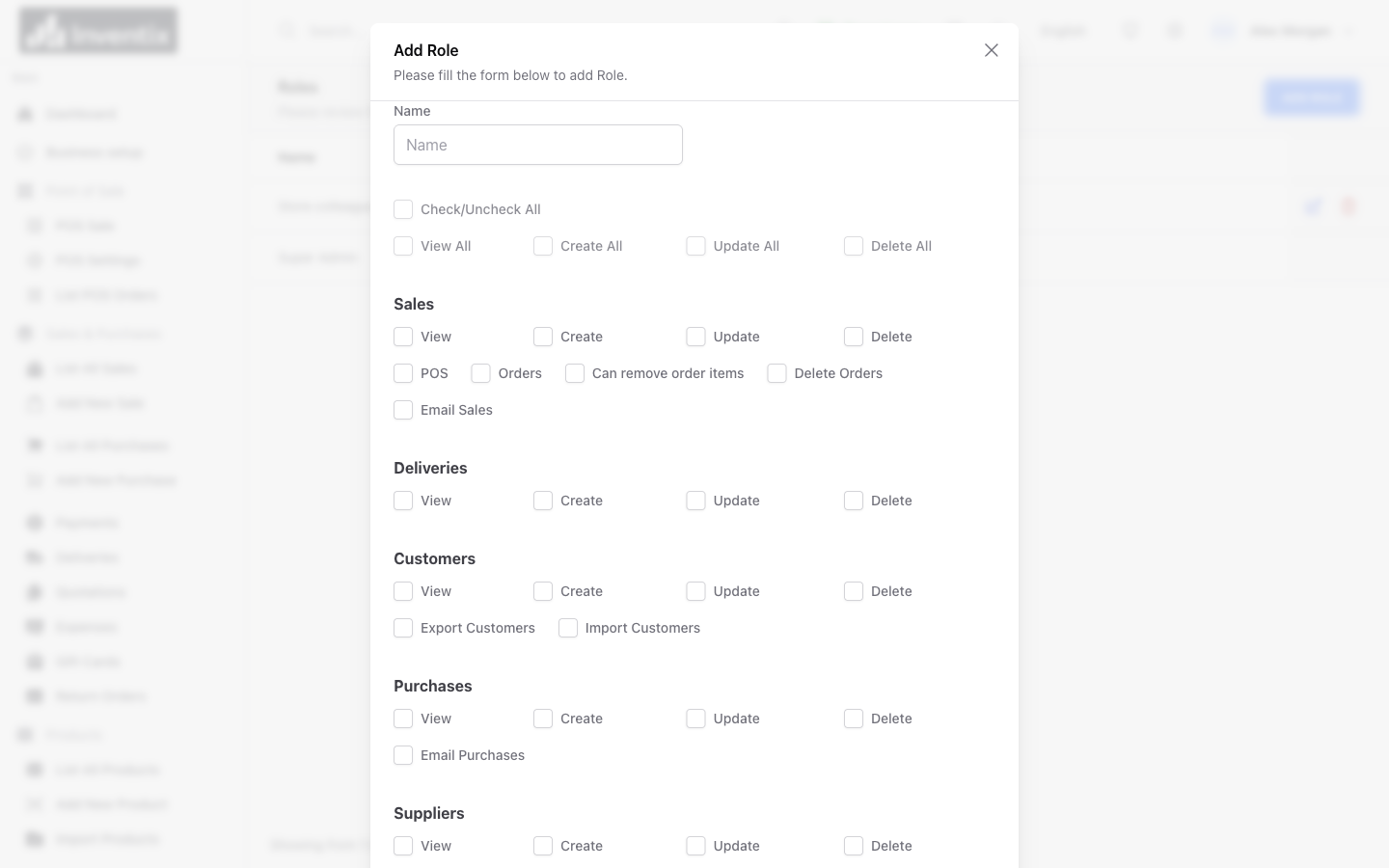
Create an individual account for each staff member and choose the role and stores they should use. Avoid sharing the owner's login. Staff can choose an available workspace language for supported labels; this does not translate product names or change the currency.
Finish one complete workflow
Open a register, complete a small sale, find its receipt and check the quantity remaining in the same store. Open the sales and payment records to see where the result appears. Check a return or correction before trading with customers if the transaction was only for training.
Your trial includes free setup guidance. Contact support with your store type and the step you need help with, not passwords or recovery codes.
Still stuck? Tell us what happened. Never include your password or recovery codes.