Set prices, taxes and discounts
Give the team a clear selling price and check the final amount before completing a sale.

Set the normal selling price
Open the product form, enter its selling price and standard cost, then choose the configured tax treatment. Check any variant or unit-specific price rather than assuming that the main price describes every option.
The standard cost is used in operational calculations. It is not a substitute for advice about the accounting or tax treatment required in your country.
Check a discount in checkout
- Add one known product to POS and confirm its quantity and price.
- Apply the available item or order discount only if your role is allowed to do so.
- Check whether the selected discount is a percentage or a fixed amount.
- Review the subtotal, tax and final total before taking payment.
- Complete the sale and inspect the saved receipt or invoice.
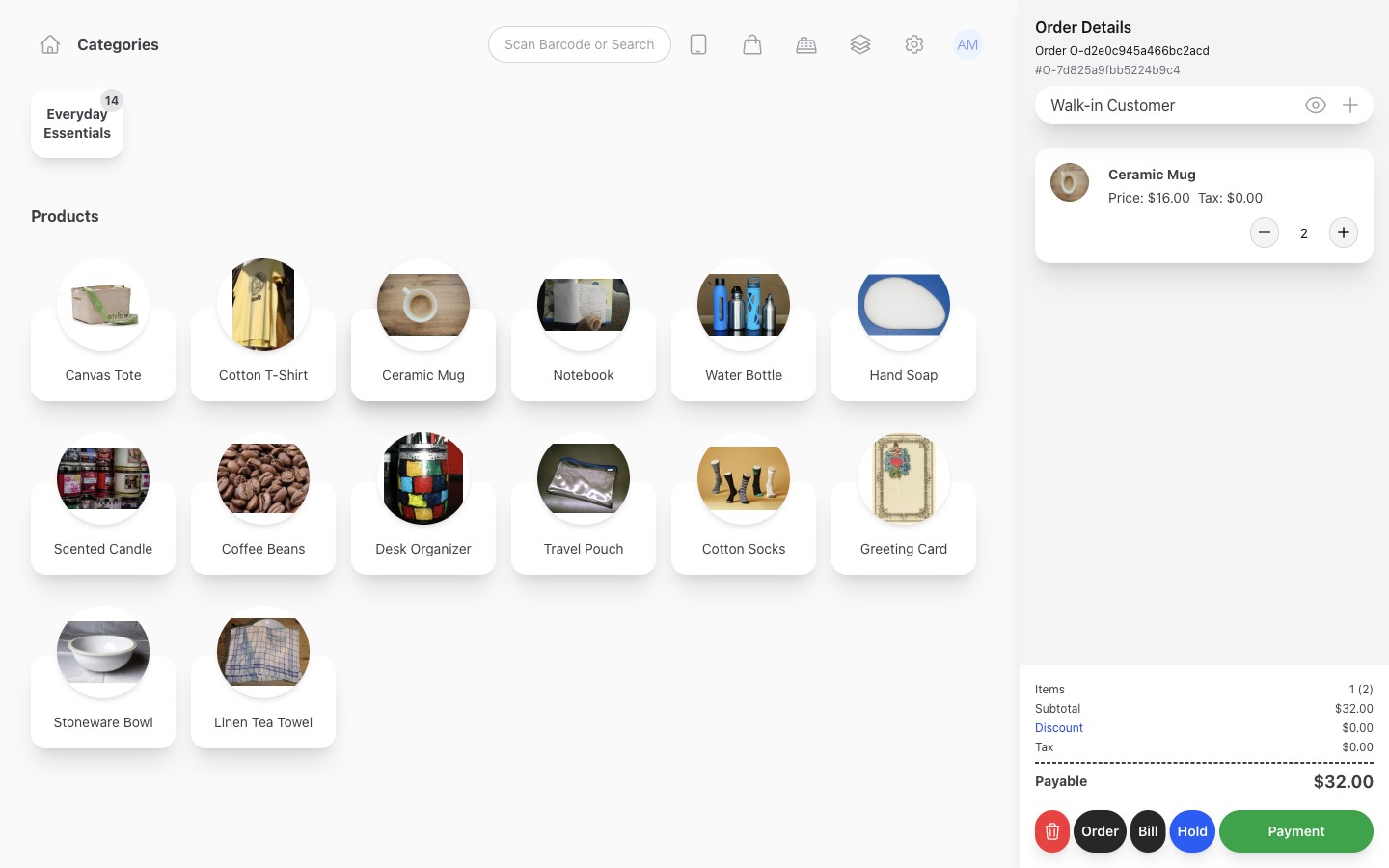
For a simple untaxed example, a $20 item with a 10% discount should leave $18 due. That is an illustrative calculation, not a statement that all stores use the same taxes or order-discount rules.
Keep tax setup separate from language
Changing a workspace label to Spanish or French does not change tax rates, currency or legal invoice requirements. Confirm the business and product tax settings separately. Test a representative sale with your accountant's expected treatment before using a new setup for customers.
If the total is unexpected
Check the selected product option, selling unit, quantity, item discount, order discount and tax choice. Do not take a second payment to compensate for a mistake without first reviewing the saved transaction.
Use individual staff permissions for price changes and read invoices to find the saved record. Subscription prices are separate from store selling prices; see Inventix billing.
Still stuck? Tell us what happened. Never include your password or recovery codes.