Answer a stock question where you are
You are away from the counter and someone needs an availability answer. Sign in from your phone browser, select the location and find the product. Check the actual store quantity rather than rely on yesterday's spreadsheet or wait for someone to answer a call.
When another location has the stock, follow a transfer instead of changing two quantities by hand. Your phone reaches the same business records as the counter computer.
See inventory by store or follow multi-store work.
Sell from the screen in your hand
Find an item, build the basket and record the payment in the online checkout. Use the customer and product information already in your workspace, then follow the completed sale into its stock and payment records.
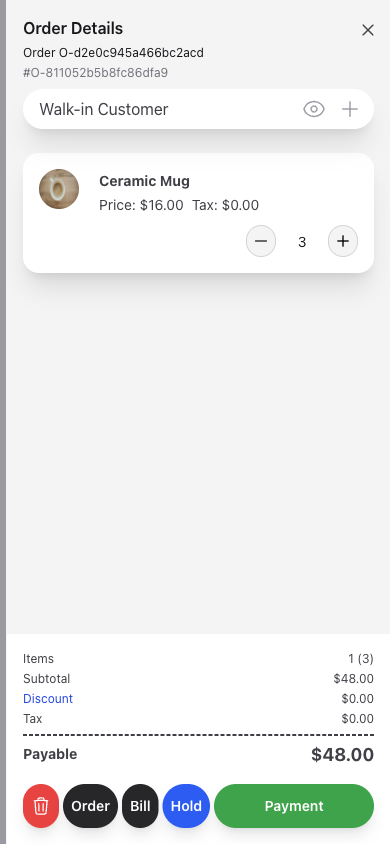
The phone-browser checkout is available now. The screenshot shows the web workspace, not a separately released native mobile app.
No expensive dedicated POS terminal is required to begin using the software. Start with the device you already have, a supported browser and an internet connection.
Keep receiving and customers connected
Use the receiving store and supplier when recording a delivery. Find a returning customer's original sale when they have a question or come back to pay. Changing devices does not mean re-entering the catalogue or keeping a second copy of customer history.
For larger imports or detailed data entry, choose the screen that helps you review the work carefully. Mobile access gives you another way into the business, not a requirement to do every wide-table task on a small screen.
Check how the day is going
Open the overview for the period you need, then follow sales, purchases, received payments and expenses into their reports. You can check the business without waiting to return to the desk.
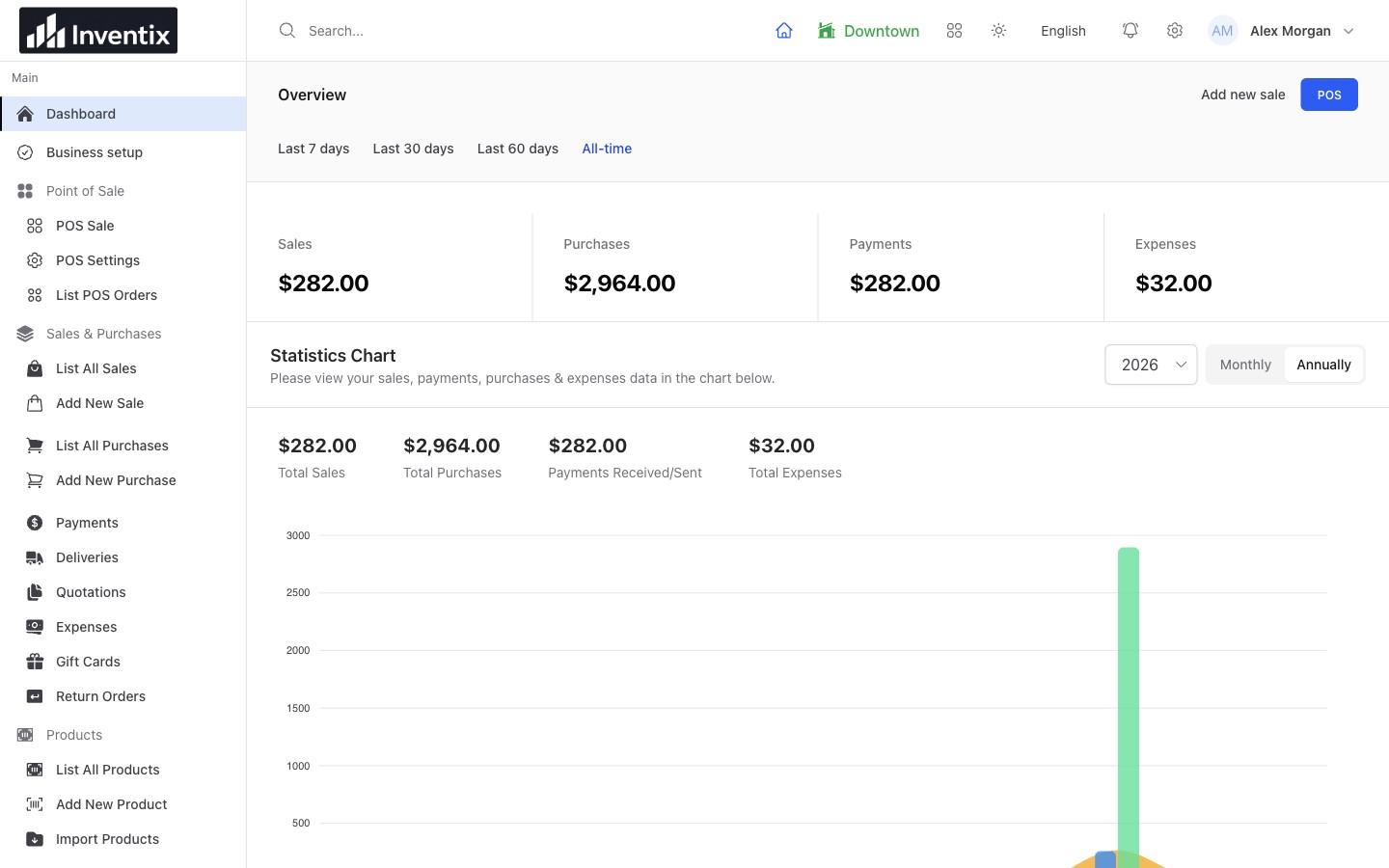
Reports belong to the same workspace on your devices. A wider screen gives charts and detailed tables more room.
Remember that sales and money received can differ because of partial payments and older balances. Explore the reporting journey.
Continue at the counter or desk
Use a tablet or computer for a busy fixed counter, a large catalogue or a detailed report. Return to your phone when you need to check the store while moving around. Your records remain in the same online workspace.
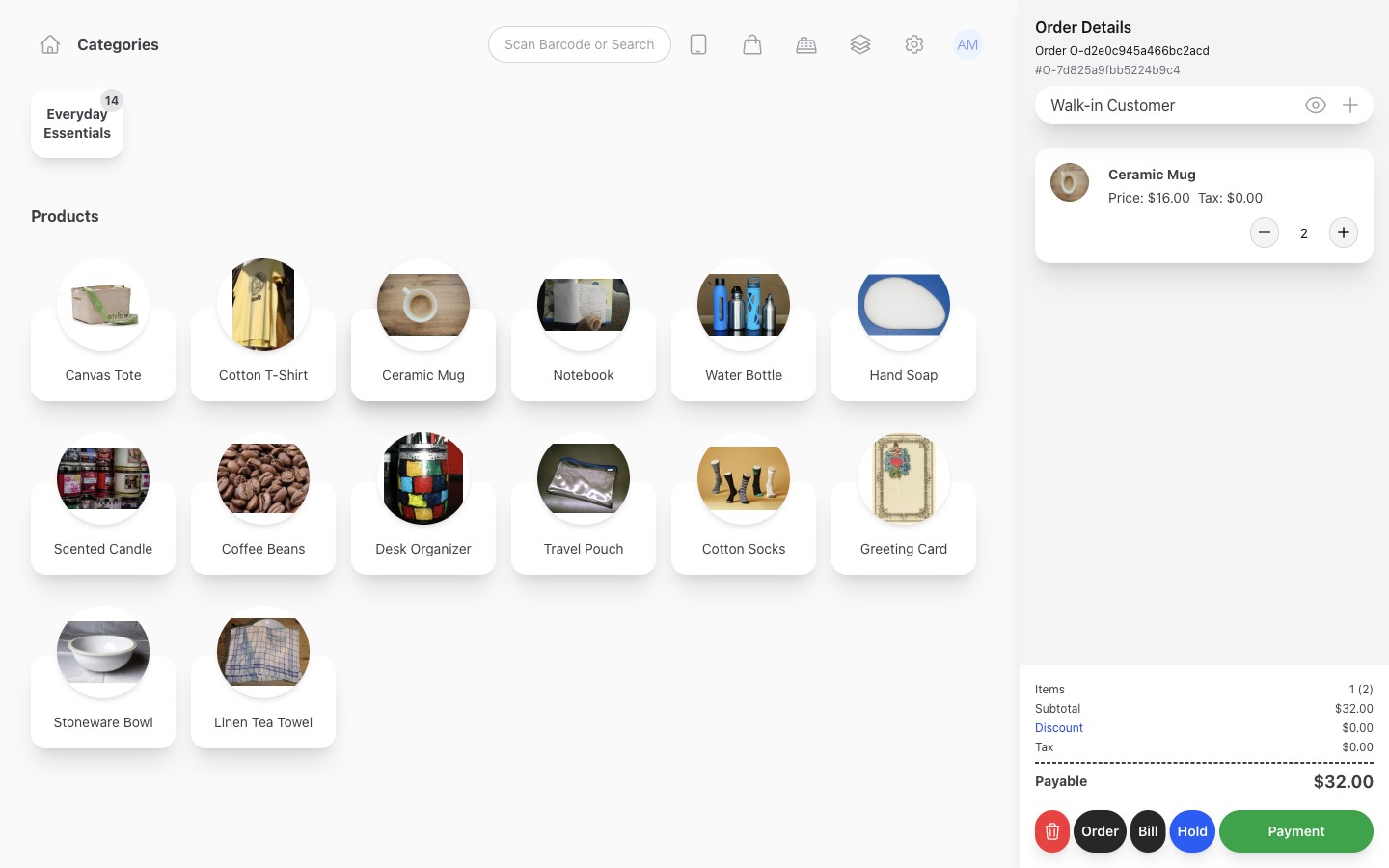
Phone, tablet and desktop access complement one another. Use the layout that suits the work.
Give your team their own way in
Let staff use individual accounts with their assigned stores and permissions. You can review the business from your phone while colleagues use their permitted checkout workflows without borrowing your owner login.
Use a private sign-in on shared devices and follow your account-security process if a phone is lost. Set up staff access and protect account access.
Your mobile questions
Do I need to install an app?
No app download is needed to begin with the browser workspace. Separate native mobile applications remain planned; they are not presented as already released.
Can I sell offline or scan with my phone camera?
The current workspace needs an internet connection. Phone-browser access does not automatically provide offline sales or camera barcode scanning. Test compatible external equipment separately when you need it.
What about card payments and receipts?
Use your external provider to charge a card. Recording the amount in Inventix does not process the charge. Printers and scanners also have their own setup and compatibility requirements.
Try a complete phone workflow
Find one product, check its store quantity and complete a practice sale in a test workspace. Open the resulting sale and report from your phone, then from your computer to see the same business context.
Follow a phone-based retail journey, start your first store or get free setup help.