The short answer
Use one connected retail workspace to check products, stock, sales and purchases from a phone browser. Choose the store before acting, keep a reliable connection, and check the saved record after every stock or payment change.
Start with the question you need answered
You are away from the shop and a customer asks whether an item is available. You do not need another spreadsheet or a call to every employee. You need the correct product, the correct location and a quantity you can trust.
Inventix brings products, stock, checkout, purchases, customers and reports into the same retail workspace. You can use it in a modern phone browser, then continue on a tablet or computer. The native mobile apps are coming soon; the browser experience is available now.
Check an item before promising it
Sign in to your workspace and choose the store you want to check. Open the product list and search for the name or code. For items with options, check the exact variant and unit, not only the parent product name.
A combined business quantity can be useful for planning, but it is not the quantity on one shelf. If Downtown holds 4 mugs and Riverside holds 20, Downtown cannot immediately promise all 24. You need to arrange a transfer or direct the customer to the location that holds the stock.
Set up products and choose the right store.
Sell with the device you already have
Open POS, choose the customer when needed, add the products and review the total. Record the payment, then check the receipt and stock effect. Staff can use the same system at the counter while you review the business elsewhere.
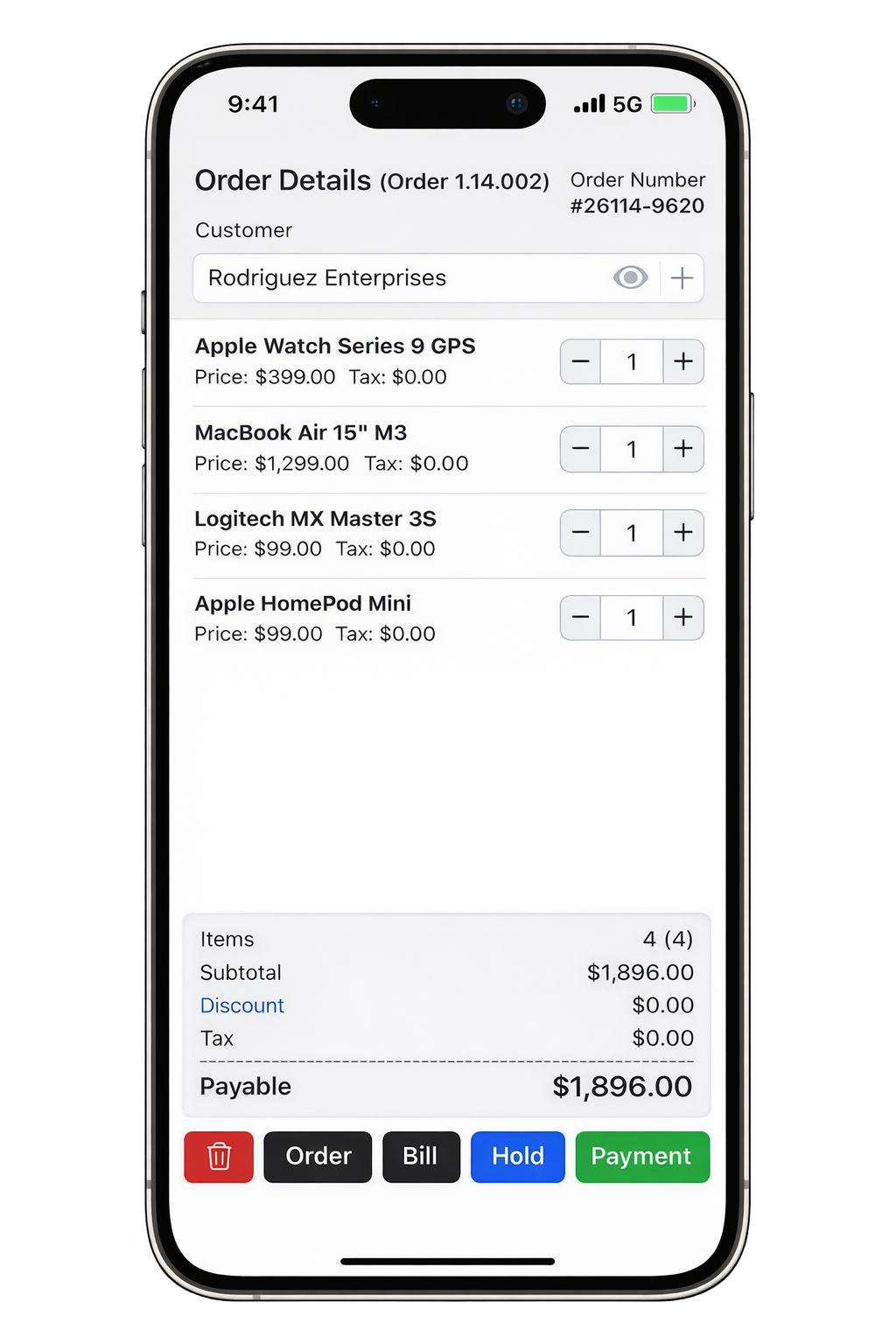
No expensive POS terminal is required to begin using the software. That does not mean every payment method or piece of equipment is built into your phone. Inventix records shop payments; a manually recorded card payment does not charge the card. External card terminals, receipt printers and scanners still need their own setup and testing.
Phone browser access also does not guarantee camera barcode scanning. You can search by product name or type a code; test any scanner you intend to use. Follow a complete checkout.
Keep stock movements explainable
Use a received purchase when supplier goods arrive. Use a transfer when stock moves between your stores. Use a checked count or adjustment when you know why the recorded quantity differs.
Those actions are not interchangeable. Recording a transfer as a second purchase can make your buying history misleading. Reimporting opening stock to correct today's quantity can lose the reason for the change.
When a delivery arrives while you are away, your team can record it in the selected store. Review the purchase reference and resulting stock rather than asking them to send a second spreadsheet. Receive supplier stock.
Give your team enough access, not every permission
Each staff member should have an individual account, appropriate role and assigned stores. A cashier does not automatically need to manage users, change business settings or edit every price.
Test the staff account before a busy day. Check that a permitted action works and another location remains unavailable when it should. Set up staff access.
Finish with a useful business check
Choose a consistent date range. Look at sales, money received, returns, unpaid balances and expenses. Sales and collected payments can differ because an order is partly paid or paid later; that is a question to investigate, not automatically missing cash.
Keep your phone and downloaded files protected. Inventix is an online service: if the connection drops during a sale, find the saved record before retrying. It does not confirm and replay offline sales.
Read the reporting guide and connection-recovery steps. Start with a few products in your trial and check one complete workflow before bringing over the whole catalogue. See pricing.