Give each item a dependable code
Keep a distinct product or supported variant code that your team can recognize. Use it consistently in the catalogue, import file and shelf label. Similar names should not force the cashier to guess which item a customer brought to the counter.
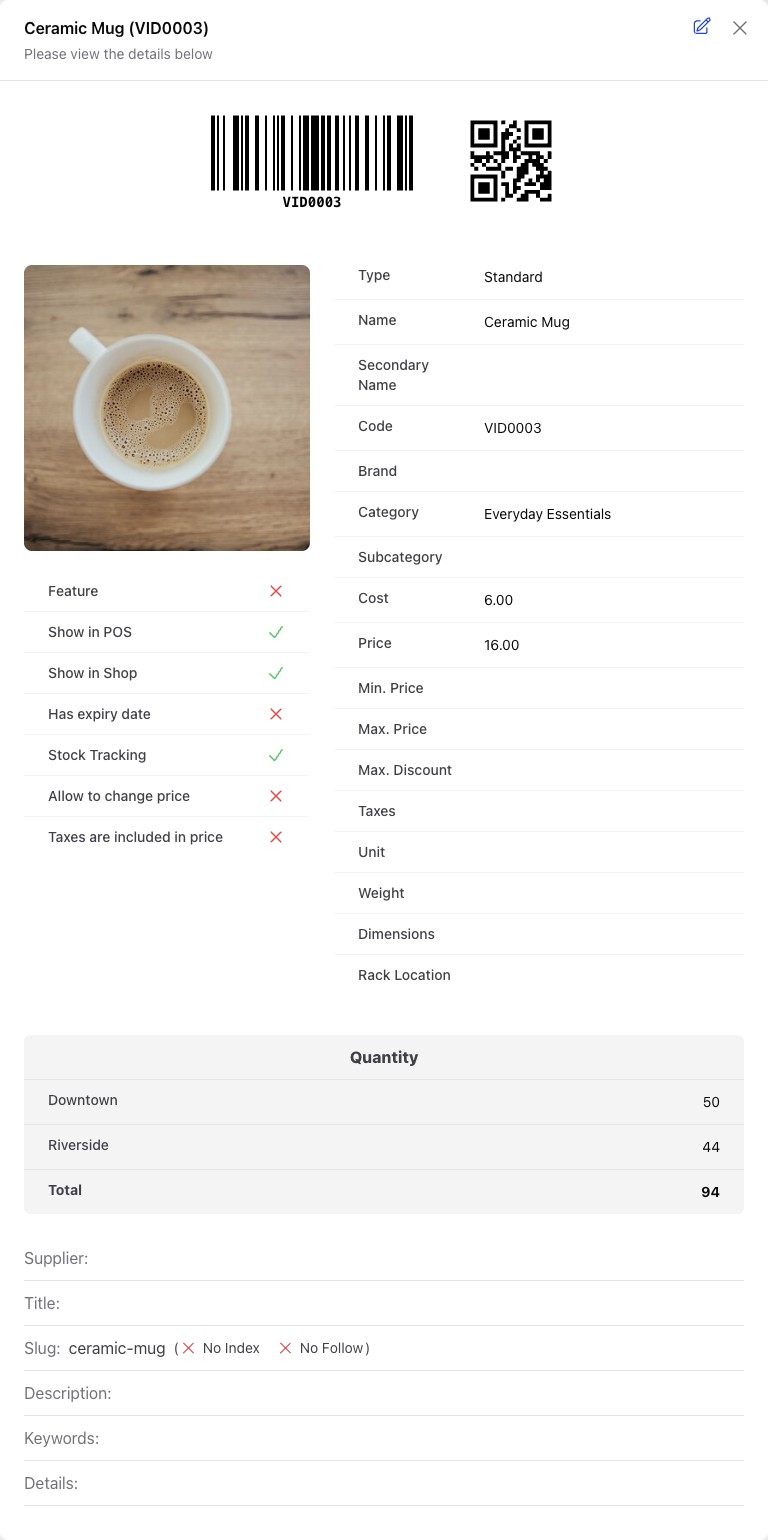
The code identifies the item. Check the product and barcode format together before making labels for it.
Preserve leading zeros when preparing spreadsheets, and do not give unrelated items the same code to bypass a failed scan.
Choose products and label quantities
Open the product-label workspace, find the products and set the quantity of labels you need. Select the appropriate template and display options for your paper and counter setup.
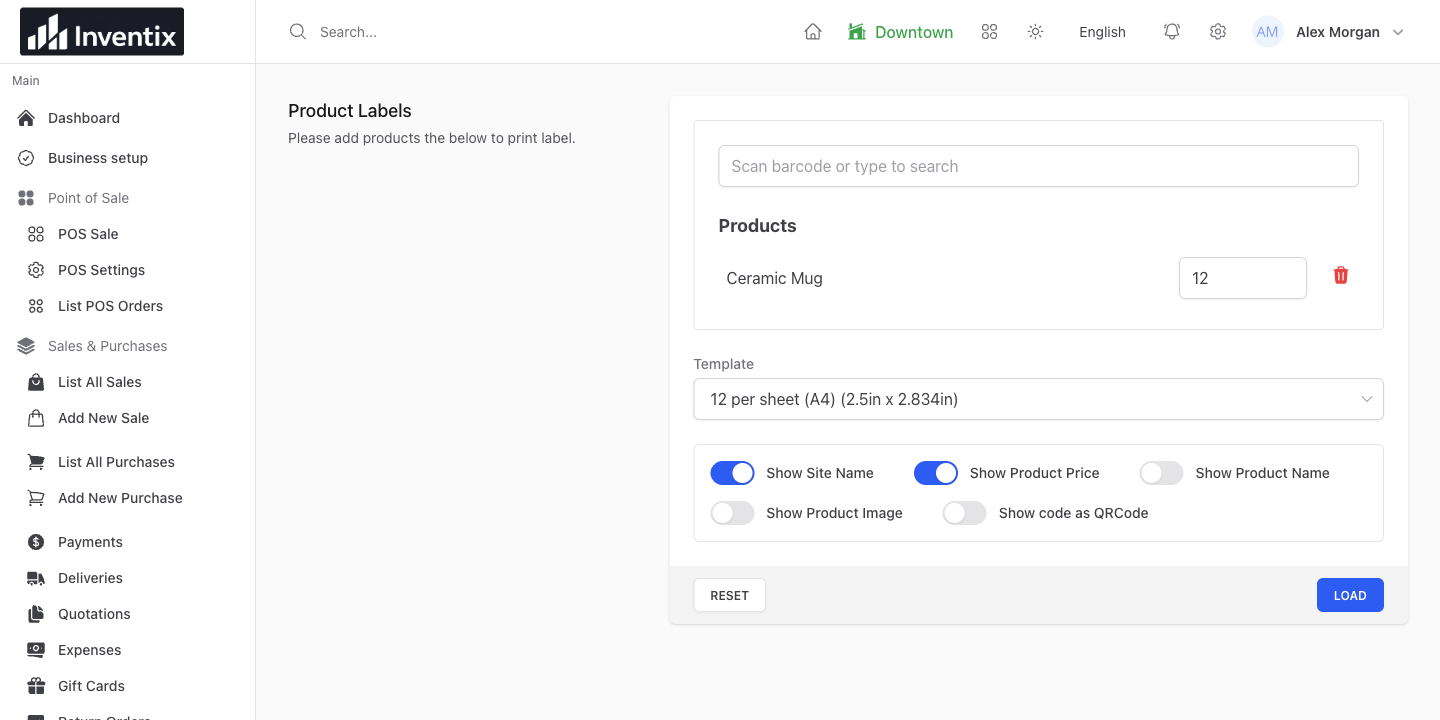
Label setup brings product selection and print choices together. Label quantity describes the print batch, not a stock adjustment.
Keep the batch practical. The current workflow validates positive whole-number quantities and supports up to 1,000 labels at a time.
Preview before you print
Load the preview and check the code, price and layout. The preview uses current product details and validates whether the code fits the selected barcode format. Fix the product code or print choice before proceeding when it does not.
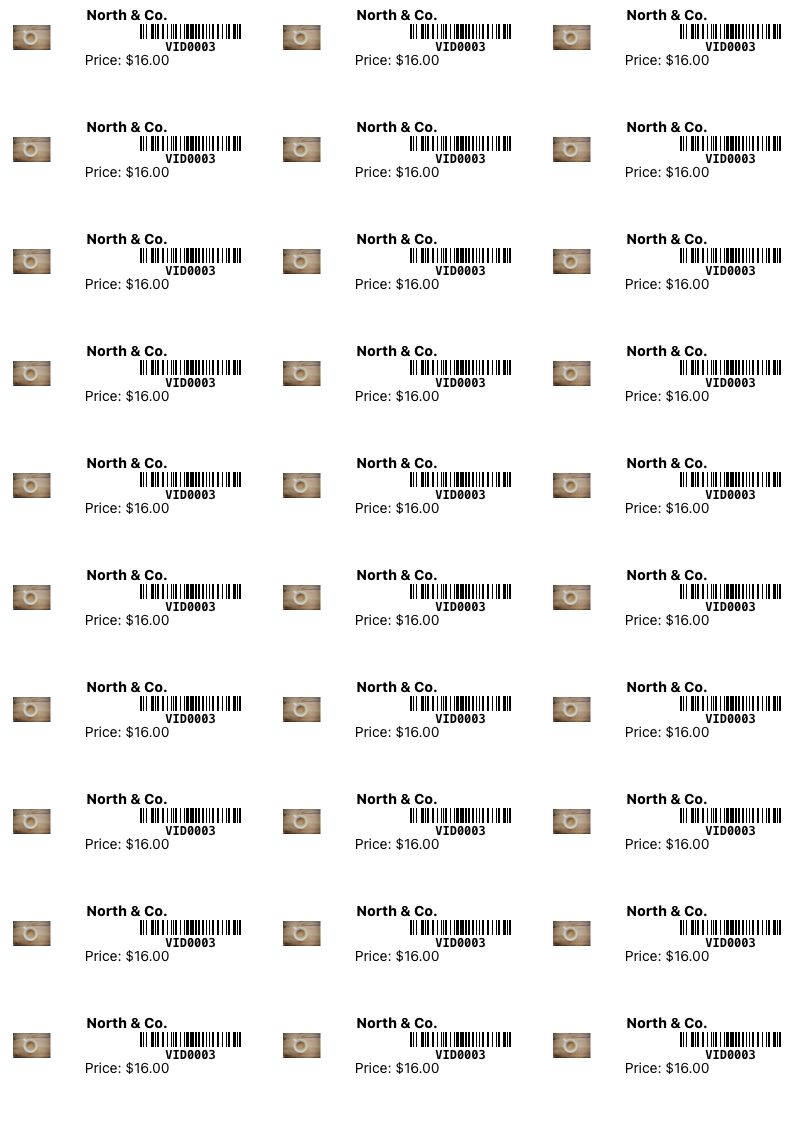
This is a generated label preview from the real application. Print and scan a small sample on your own equipment before producing the full batch.
A successful preview does not guarantee the printer's scale or margins. Confirm the physical label, especially when changing paper or using a different browser.
Scan into the right search field
In checkout, focus Scan barcode or type to search and scan with compatible equipment. Confirm the selected product or variant and the basket quantity before completing the sale.
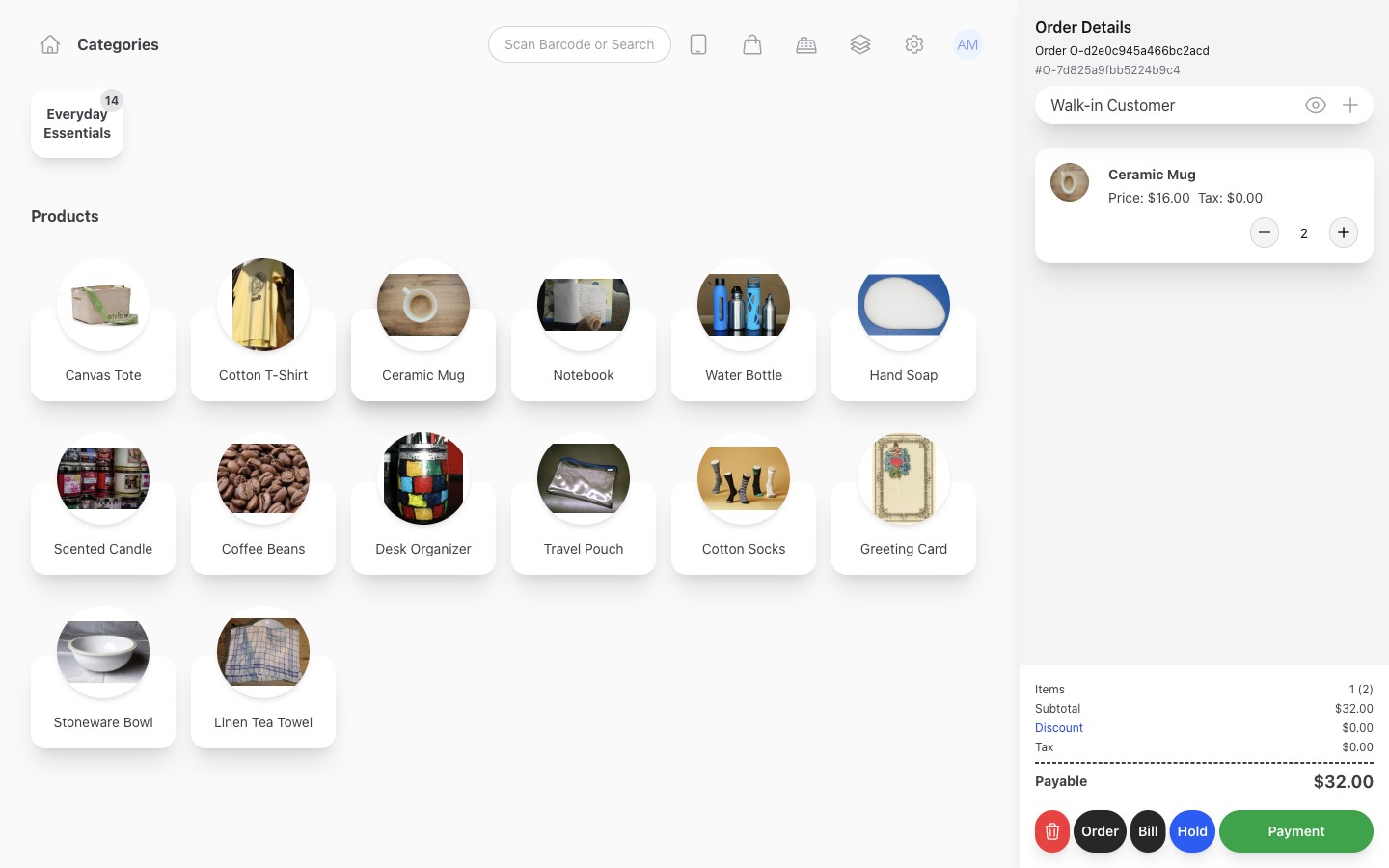
The search field supports finding the item at checkout. You can also type a code or search by name when that is more convenient.
Fix the cause of a wrong scan
Check the stored code, variant and selected store. Inspect what the scanner actually enters, including any trailing characters. If one scan adds an item twice, check the scanner's terminator and input behavior before serving another customer.
Keep one known label for testing. It helps distinguish a damaged printout from an incorrect product code or an equipment setting.
Test your actual equipment
Start with the device you already have, then add compatible equipment when your store needs it. Paper size, print scaling, code format and scanner configuration all affect the final result.
Phone-browser access does not automatically provide camera scanning or a native scanner driver. No dedicated POS terminal is required to begin using Inventix, but a scanner or printer still needs its own compatibility check.
Your barcode questions
Does generating a label register an official retail barcode?
No. Label generation prints your product identifiers. Check separately whether your business needs officially registered identifiers for external retail or supply-chain use.
Will printing labels change my stock?
Labels identify products; they do not represent a sale, received purchase or stock correction. Record those events through their proper workflows.
Make your first test label
Choose a representative product, preview a small batch, print it and scan it into checkout. Confirm it selects the correct item once before rolling out the labels across your shelves.
Follow barcode setup, prepare your checkout or ask for setup help.