Start with the job
A cashier needs to serve customers. A store manager may also receive deliveries and review reports. The owner needs a wider view. Start with what each person actually does, then give them an individual account for that work.
Sharing your owner login turns every staff member into the same person in the workspace. Individual access lets you change one person's responsibilities without changing everyone else's sign-in.
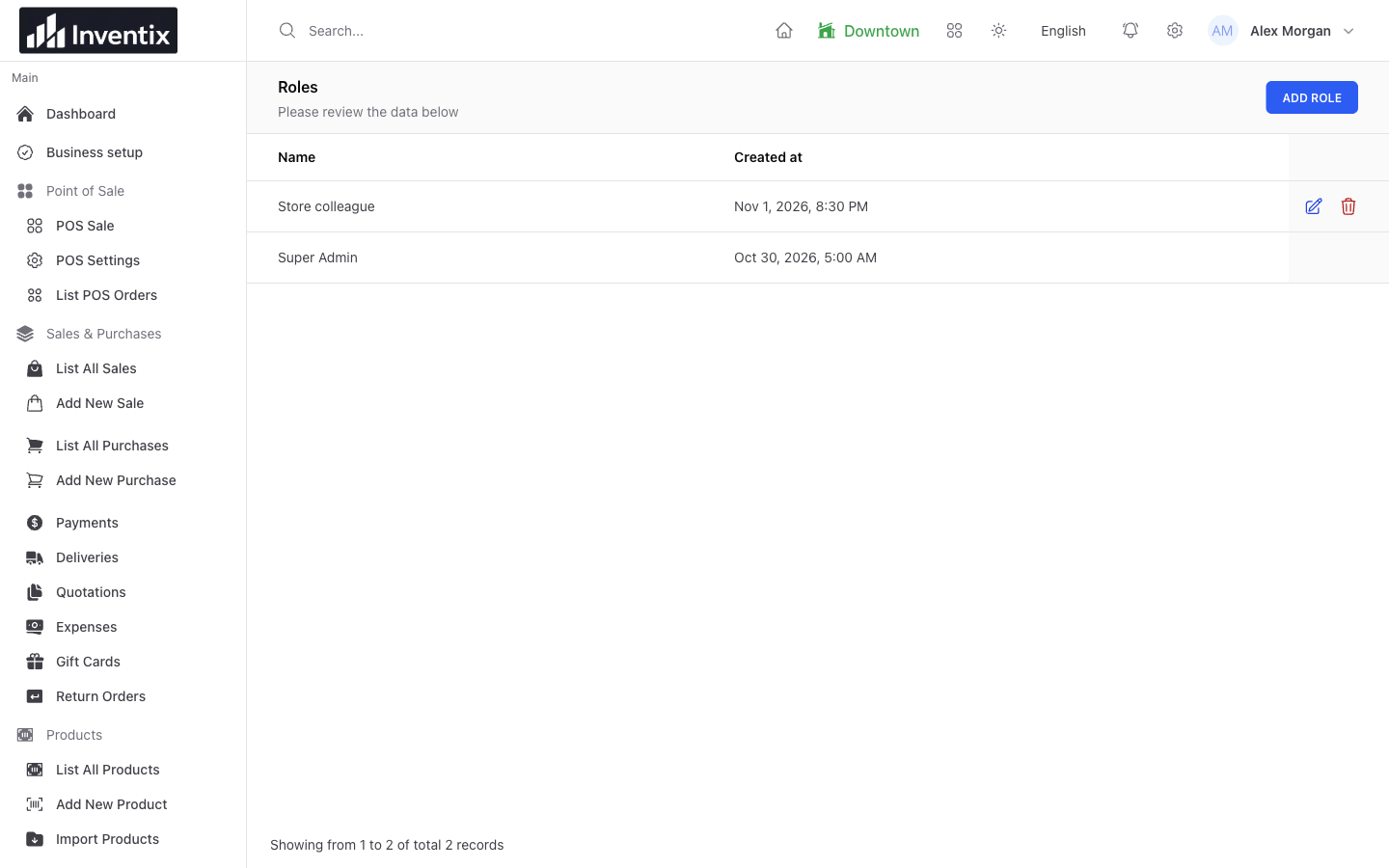
Roles give you a way to organize responsibilities. Review the actions inside a role before assigning it to a colleague.
Choose the actions, not just the menu
Create or review a role under People > Roles. Select the supported actions the job requires. Permission to view sales is different from permission to create, update or delete them, and checkout access is different from access to settings or sensitive reports.
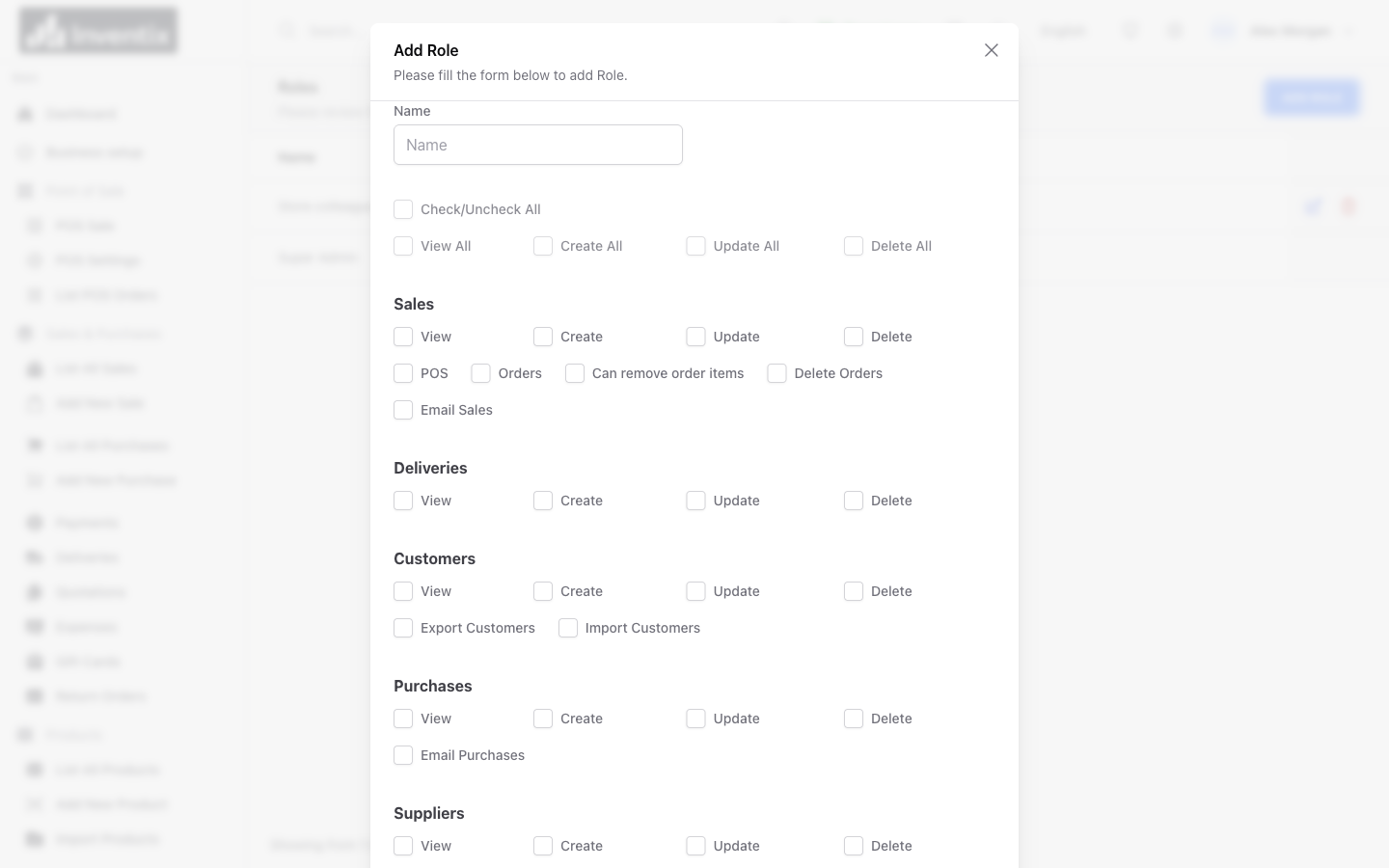
The role editor separates business actions. The screenshot shows part of the permissions form, not a promise that every checkbox should be enabled.
Use a small set of understandable roles rather than tick everything to get a missing action working. Review record-access options as well when the job needs more than its own records.
Connect the person to their stores
Create or edit the individual account under People > Users. Assign the role, default store and allowed stores. A cashier working Downtown should not need your login to use Downtown's checkout, or automatically gain access to Riverside's records.
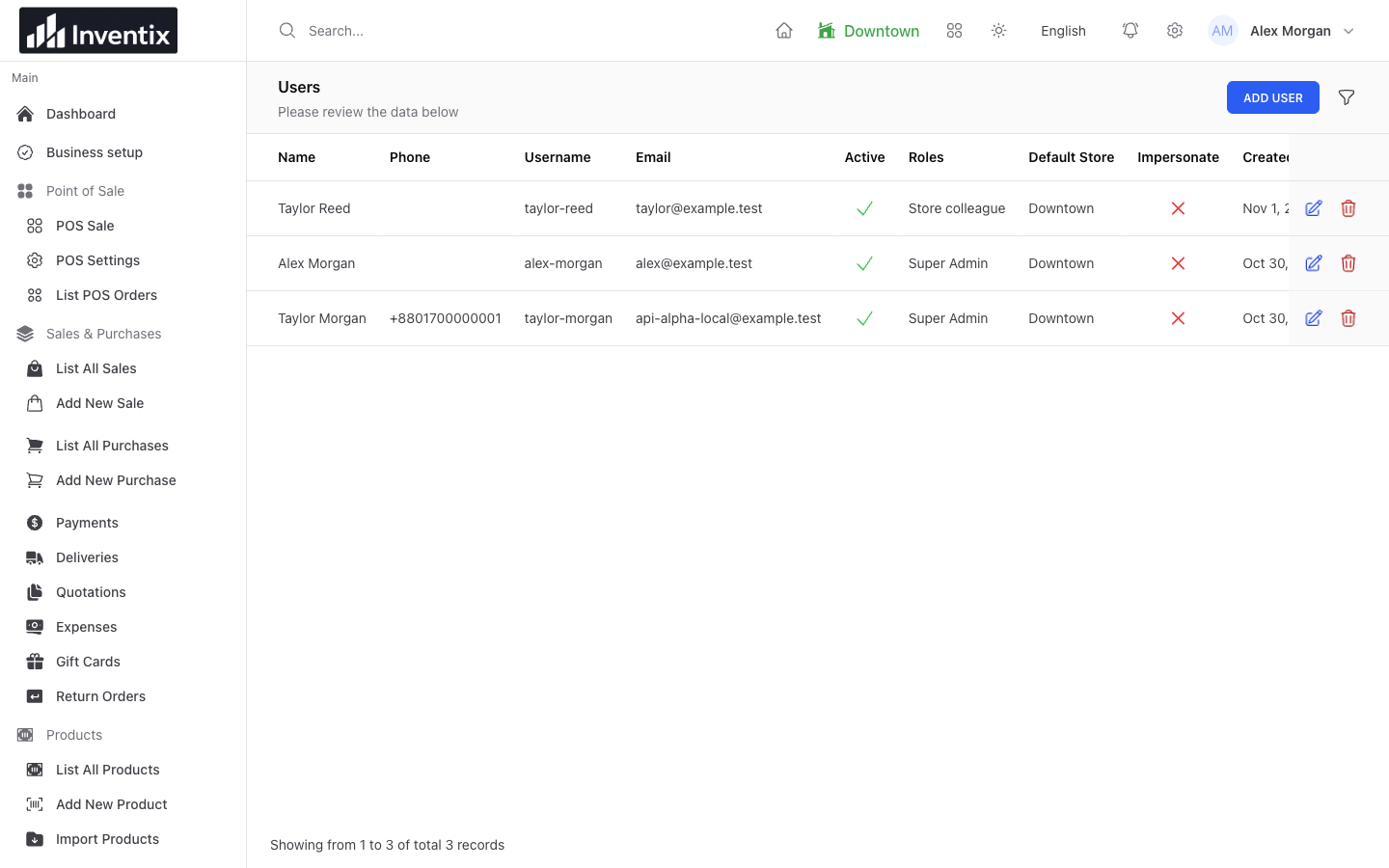
Separate accounts give each colleague their own access. Review both their role and their store assignments when responsibilities change.
A useful starting point is to write down the person's job before configuring it:
| Responsibility | Access to review | Keep restricted unless needed |
|---|---|---|
| Serve customers | Checkout and relevant sales | Roles, settings and wider reports |
| Manage one store | Its sales, receiving and permitted reports | Unassigned locations and owner controls |
| Review the business | Appropriate stores and reports | Editing or deletion unrelated to the job |
These are setup examples, not claims that preset roles automatically match every business.
Test the staff view
Sign in through a separate staff session. Confirm the right store is available, a permitted action works and a restricted action or location is unavailable. Test a representative workflow in a dedicated test workspace rather than change real stock just to check permissions.
If the person cannot do their job, inspect the relevant role and store assignments. Do not solve a single missing permission by sharing the owner account or granting all actions.
Change access when the job changes
When a colleague moves stores or takes on purchasing, update both their role and locations. When someone leaves, use the account's active/access controls and review the sign-in situation on shared or lost devices.
Ask the person to sign in again where necessary after an access change. Do not assume an already-open screen immediately reflects every change, and do not reuse one employee's account for someone else.
Grow without a staff feature tier
Both monthly and yearly billing include the same current capabilities, without subscription limits on staff or stores. Your team can work from supported phone, tablet and computer browsers with an internet connection.
More accounts do not mean everyone needs more permissions. Keep reviewing access as the business grows.
Your staff-access questions
Does this include payroll or scheduling?
No. Staff access controls supported product actions and stores. It is not payroll, employee scheduling or a timesheet system.
Does adding a user automatically send an invitation?
Do not assume an automatic invitation. Arrange a private sign-in using the supported account setup, and never send your owner's credentials to the team.
Prepare your first colleague
Define their job, review a suitable role, assign the relevant store and check a separate sign-in. Then follow one permitted workflow and one restriction together.
Follow staff setup, prepare a cashier's register or get free setup help.