Guides and page contents
Search all guidesCreate your accountComplete Business setupCheck your first saleExpected resultIf something is missingRelated guidesSet up your first store
Start with your business details, a few products and one checked sale.
Create your account
- Open Start free trial and choose an available plan. The form shows its trial period; no card is required for the trial.
- Enter your business and account details. Choose email or phone as your sign-in contact.
- If you use email, follow the verification link before entering your workspace. Check spam and request a new link if it expires.
- If you use phone-only signup, select the country code and save the recovery codes shown after signup. SMS verification is currently disabled; the number is not verified.
- Open your workspace from the account dashboard when setup finishes.
Your account lives at inventix.app. Your store workspace uses an address such as yourcompany.app.inventix.app. Bookmark the address provided by your dashboard; do not guess it.
Complete Business setup
- In your workspace, open Business setup.
- Review your business name, address, contact details, currency and timezone, then select Save business details.
- Choose the product taxes you need, or No default product tax, and save the choice.
- Use Add product or Import products to create a small, recognisable sample of your catalogue.
- Choose Receive a purchase, Record opening stock, or Start with zero stock to match what is actually in the store.
- Use Manage staff and Manage roles, or select Only me for now.
Choose your currency before creating products and financial history. It becomes locked afterwards. Tax rates are your business configuration, not an automatic tax-compliance service.
Check your first sale
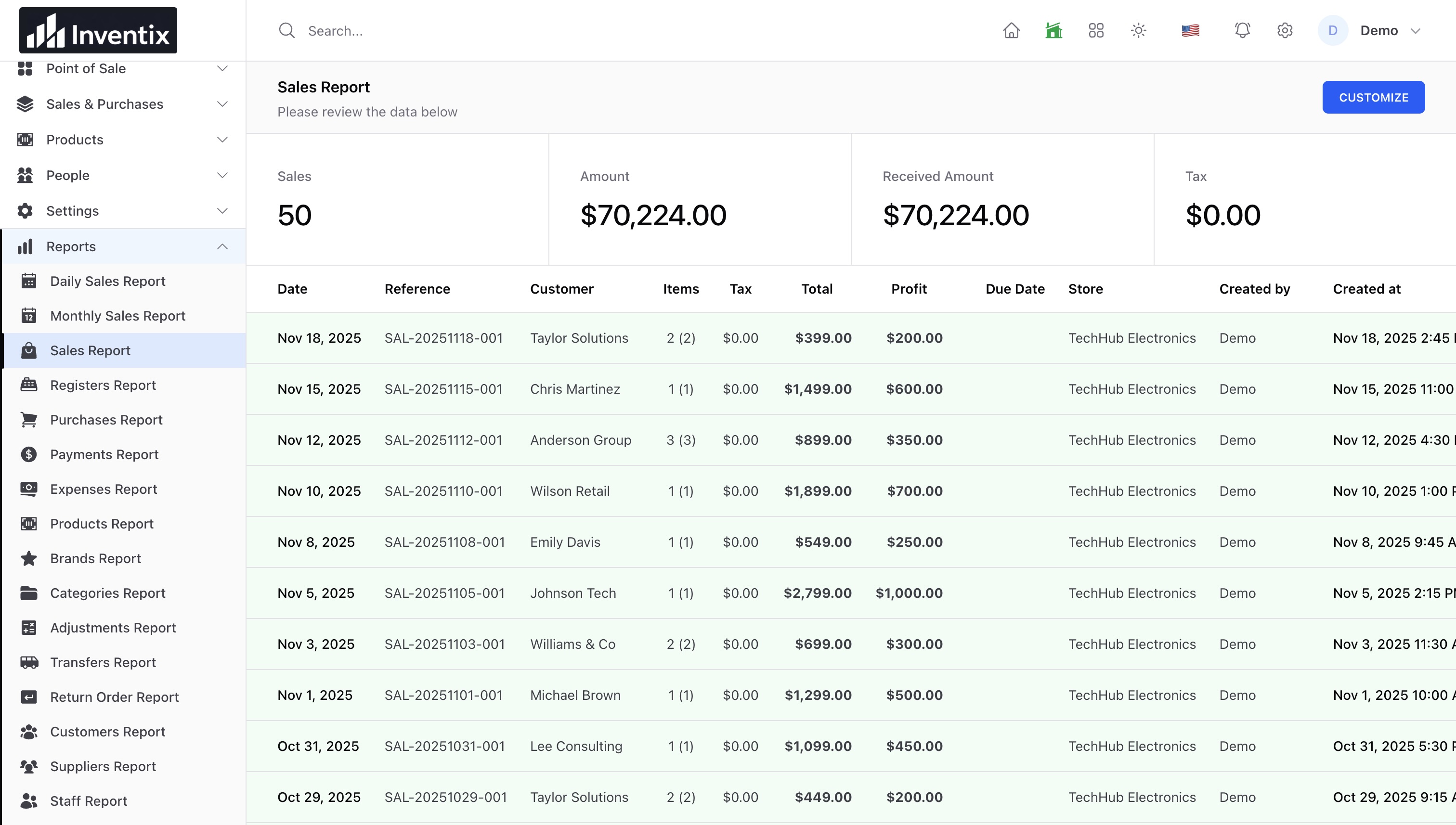
Open Open POS from Business setup, open a register and complete a small sale. Confirm the receipt, remaining product quantity and sales report agree. This is a real business record, not a training-mode transaction; use a dedicated test workspace before importing live records.
Expected result
The setup checklist records your completed decisions. You can leave and return without repeating the completed steps. Your products, stock and first sale belong to the selected store.
If something is missing
A missing menu can mean your account lacks permission. Ask the workspace owner to check your role and store access. If provisioning stays pending, contact support with your workspace name; do not create duplicate accounts to retry.
Next: add products, use the POS, or protect your account.
Still stuck? Tell us what happened. Never include your password or recovery codes.