Record and review store expenses
Keep shop spending with the right store, date and reference so your daily review tells the whole story.

Add an expense
Use the expense area with a staff account allowed to create expenses. Choose the relevant store before you begin.
- Create a new expense and enter the date and reference.
- Enter the amount. Select a supplier when the spending belongs to a known supplier.
- Add details that will make sense at closing, such as the reason and payment reference.
- Attach a supporting document if needed and permitted by your account.
- Save and reopen the expense to check the amount and store.
An expense records spending. It does not receive products into inventory. Use a purchase for stock delivered by a supplier, and avoid recording the same supplier invoice again as an unrelated expense.
Review spending with sales
Open the expense report, choose the date range and store, and compare the entries with your receipts. Use the same scope when reviewing sales or payments. A location's sales total and a whole-business expense total are not a meaningful like-for-like comparison.
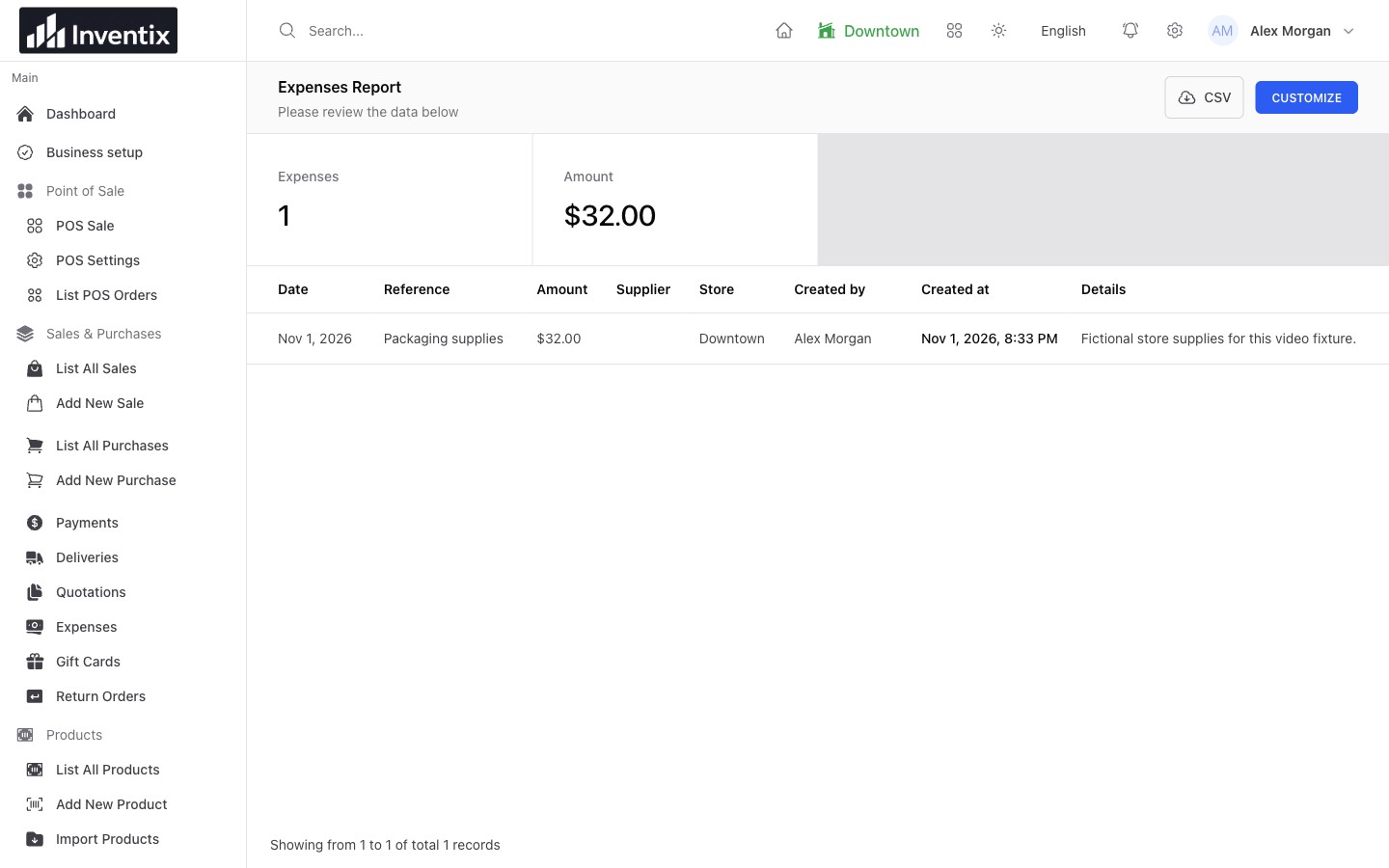
Check a practical example
Suppose a store records $400 in sales and buys $15 of cleaning supplies. Record the $15 expense once with a clear reference. It should be discoverable in the expense report for that date and store. This example does not calculate accounting profit: product costs, returns, taxes and other spending still matter.
Correct a mistake carefully
Open the original expense and use the actions your role permits. Check whether it is already part of a register handover before making changes. Keep a note of the correction rather than adding another expense with the opposite wording.
Continue with register closing and reports. Do not upload passwords, customer card details or unrelated personal documents as attachments.
Still stuck? Tell us what happened. Never include your password or recovery codes.