Start with the file you have
Your spreadsheet already holds useful work: product names, codes, prices and quantities. Bring a small sample into Inventix first rather than type those same products again.
Use CSV, XLSX or XLS. Choose the worksheet and header row, and check the number format your file uses. Keep product codes as text so a code such as 000101 retains its leading zeros.
Match the columns once
Map your spreadsheet columns to the appropriate product fields. Check the difference between a cost and a selling price, and between a product code and a display name. Leave a field unmapped when you do not want to supply or change it through this import.
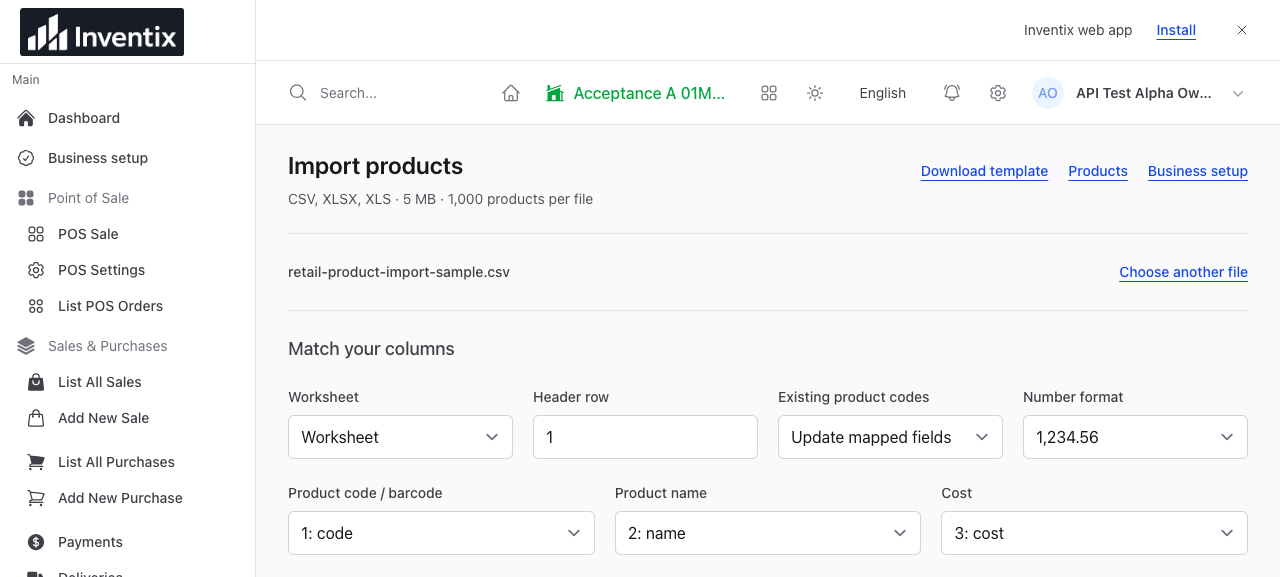
Column mapping lets you identify your own file's fields rather than depend on its column order alone.
Start with a file you understand. Combining unrelated supplier files or inconsistent number formats before reviewing them makes mistakes harder to spot.
Catch errors before saving
Preview the result and review which products would be created, updated or skipped. Read the row errors and check representative names, codes and amounts. A preview is your opportunity to catch the wrong decimal convention or an incorrectly mapped price before saving it.
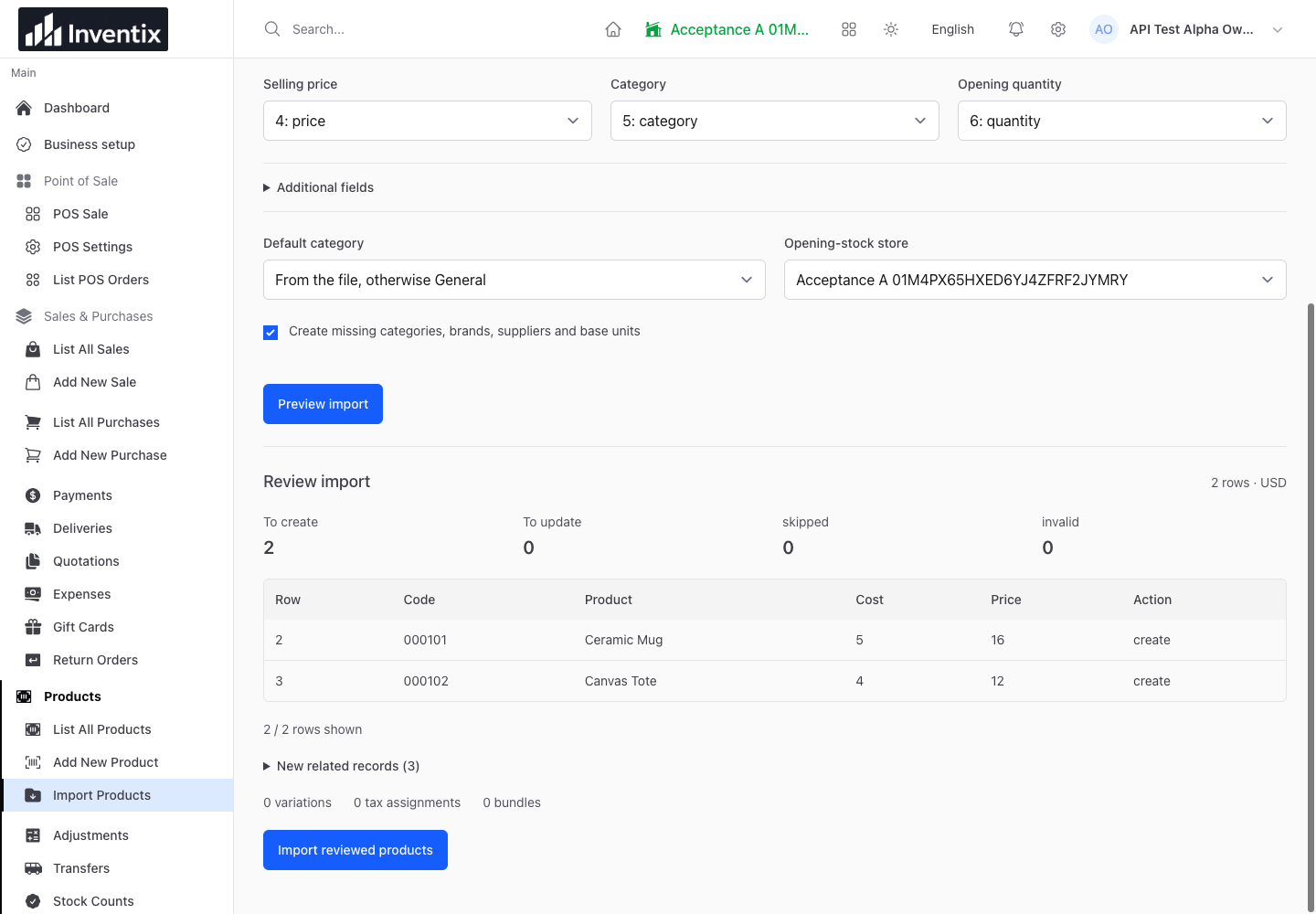
The preview shows the proposed result. Fix the source or mapping and preview again when a value is wrong.
Do not treat a successful upload as the end of the import. Check the proposed records, then explicitly confirm the result when you are satisfied.
Update products without unwanted changes
For existing products, choose the supported behavior: update mapped fields, skip existing records or stop for review. Think about the intended change before choosing. Updating a price should not accidentally create a duplicate product or overwrite a field you wanted to keep.
Use the existing product codes consistently and leave unrelated fields unmapped. Check the preview's proposed creates and updates instead of assuming every matching name is the same product.
Give opening stock a location
Starting quantities belong to a selected store. Check that store before committing a new catalogue with opening stock, particularly when you have more than one location.
Later deliveries should use the received-purchase workflow, and movement between locations should use transfers. Importing a price update is not a substitute for recording those stock events.
Check the result in your store
Review the completion summary, then find several imported products in the actual catalogue. Check a code with leading zeros, a price and a starting quantity. Open checkout and confirm your team can find the same item.
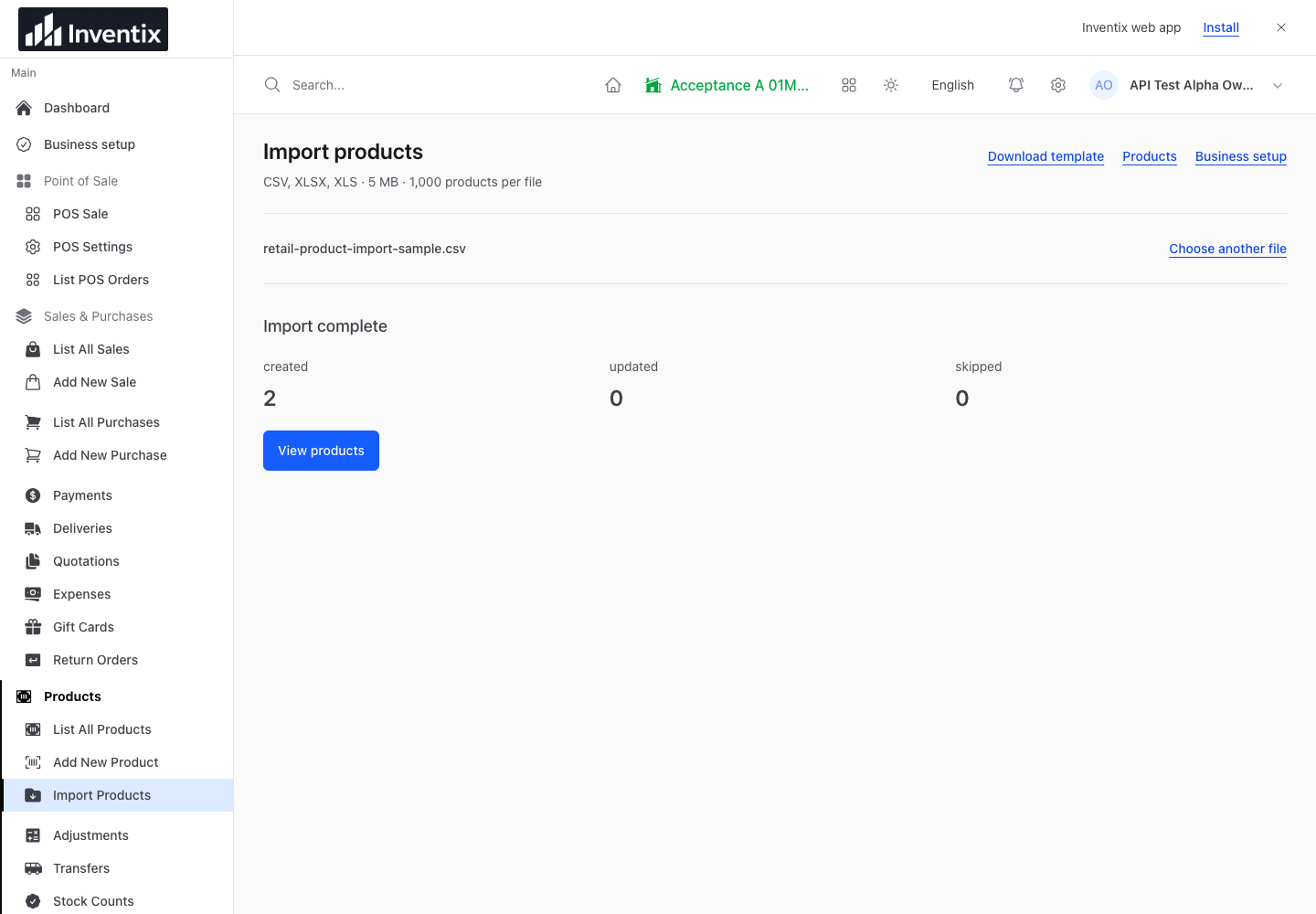
The completion result is a useful checkpoint. Follow a few records into the product list before importing the next batch.
Your import questions
How large can a file be?
The current product importer supports up to 1,000 products and 5 MB per CSV, XLSX or XLS file. Split larger catalogues into manageable batches. These are file limits, not subscription limits on the total number of products you can keep.
Will AI clean a messy file automatically?
AI-assisted cleanup is planned. The current importer uses column mapping, preview and validation. Ask us for setup help with a difficult catalogue rather than assume an incorrect file will fix itself.
Can I import customers and suppliers too?
Use the separate supported people-import workflow. Product fields and customer or supplier fields are not interchangeable. Follow people imports.
Get your catalogue ready
Download the sample, prepare a representative batch and follow it from preview to checkout. Free setup guidance is included with your trial if you need help matching the fields.
Download the product sample, follow the full import guide or ask for setup help.