The short answer
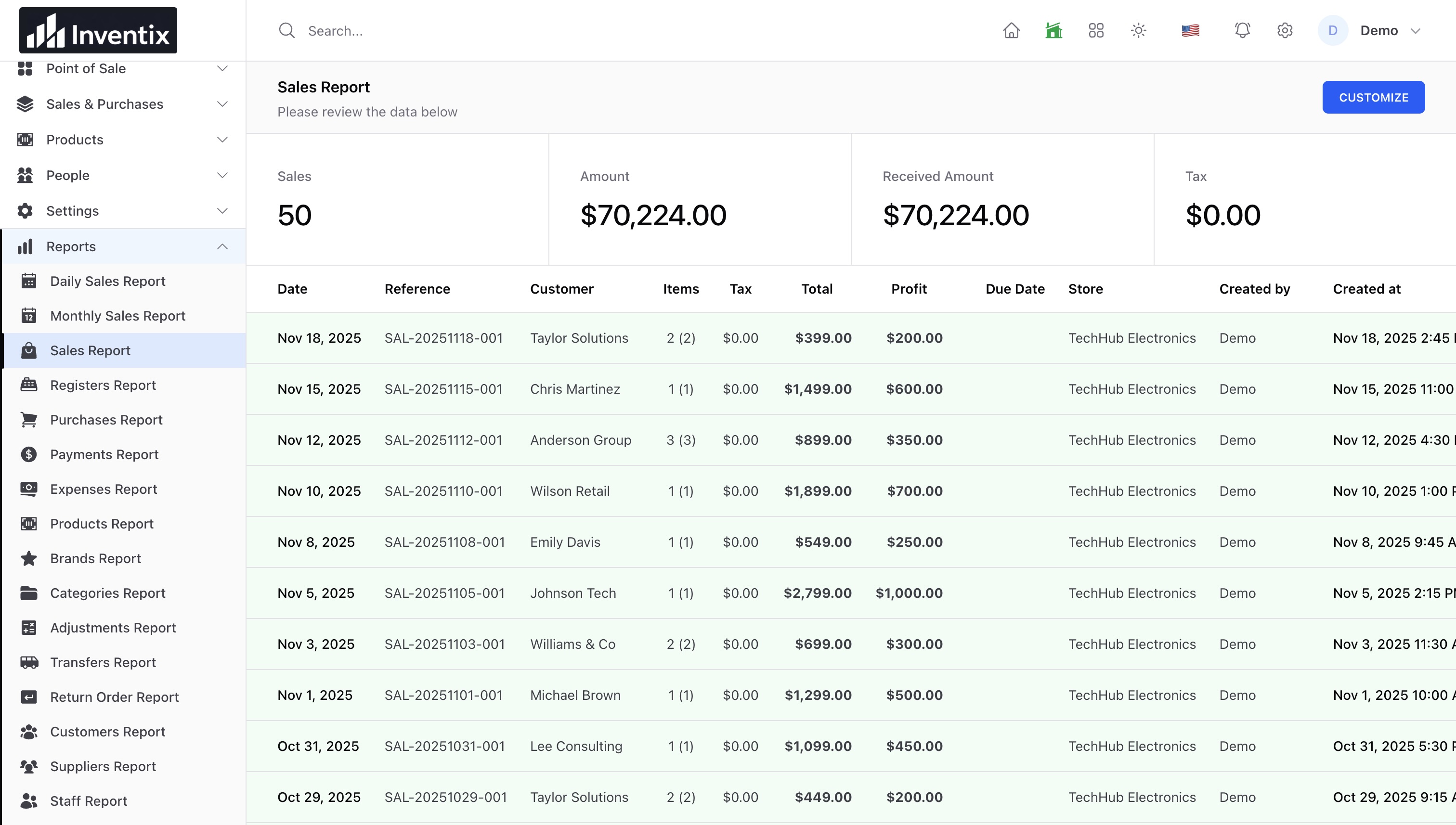
Choose the store and date range first, then review sales, received payments, returns, outstanding balances and expenses separately. A difference between sales and collected money needs an explanation; it is not automatically an error or missing cash.
Ask a business question before opening a report
At closing, you want more than a large number. You want to know what sold, what money arrived, what is still due and what needs attention tomorrow.
Inventix has operational reports for sales, purchases, payments, expenses, products, returns and other supported workflows. Start with the question, then use the matching report. A payment report and a sales report are not interchangeable.
Open the reporting guide for the current filters and download actions.
Use the same store and dates
Select the location and date range before comparing totals. Review document dates, voided records and returns. A record entered today can belong to an earlier document date, so "I entered it today" does not always mean it belongs in today's sales total.
For a multi-store review, compare the same reporting period in each location. Make sure a business-wide total is not being compared with only one store's figures.
Separate what you sold from what you collected
Here is an illustrative example with no tax, opening balance or return complication:
| Record | Sales | Money received |
|---|---|---|
| Sale A, paid in full | $100 | $100 |
| Sale B, partly paid | $60 | $40 |
| Payment against an older sale | $0 in today's new sales | $30 |
| Total in this example | $160 | $170 |
The current sales leave $20 unpaid, even though the money received in the example exceeds new sales. Which payment appears in a particular date-filtered report depends on the saved payment date and selected filters.
Investigate the underlying sale and payment references rather than adding a correction simply to make both totals equal. Confirm manually recorded terminal payments against the external terminal too.
Record partial payments and review customer balances.
Look at returns and supplier payments separately
A return can change stock, the customer's balance and the money you owe back. Confirm the original document, the return record and any actual refund through the payment provider. A manually recorded refund does not itself send money to a card.
Purchases record incoming supplier stock. Supplier payments explain money paid for it. Expenses are another category of business spending. Do not treat all three as the same transaction just because money left the business.
Review returns and supplier balances.
Understand what the profit figure can tell you
Inventix uses configured standard product or variant cost captured on the sale. Changing today's product cost does not recalculate historical sale costs. FIFO, LIFO, weighted-average and expiry-first costing are not supported in this release.
Use profit figures for operational review, not as a substitute for your accountant or certified tax reporting. Missing costs, returns or expenses can change how useful a summary is. Open the records before deciding what the business earned.
Finish with a short action list
Check low-stock items by location, note unexplained balances, reconcile the register and record the references you will investigate tomorrow. Put each follow-up against the responsible record or person instead of taking an unlabelled screenshot of a total.
Download a daily review checklist. It is a simple working sheet, not an accounting export.
Supported financial reports provide filtered CSV downloads up to 50,000 rows. Narrow a larger report; do not assume every report offers PDF/Excel or scheduled email delivery. Protect downloaded customer and payment data.
Start with your first-store checklist, then make a daily review part of the routine. You can follow the business from a phone, tablet or computer. Review pricing.