The short answer
Start with a small CSV or Excel file, preserve product codes as text, and review the column mapping before importing. Opening stock belongs to one selected store; do not use it to reset existing stock when updating prices.
Move a small, useful sample first
The hardest part of switching often is not creating an account. It is knowing whether your existing products will arrive with the right names, codes, prices and quantities.
Do not start by uploading every worksheet you have ever used. Copy two or three ordinary products into a clean file, use a dedicated test workspace, and follow those products through import and checkout. Once you understand the result, move a larger batch.
Inventix accepts CSV, XLSX and XLS files, up to 5 MB and 1,000 products per file. That is a per-file import limit, not a subscription limit on your catalogue. AI-assisted file cleanup is planned; the current import uses mapping and validation.
Keep product codes intact
A code such as 000101 must stay 000101. Spreadsheet software can remove leading zeros when it treats a code as a number. Set the code column to text before entering or pasting codes; changing the formatting after zeros have been lost does not restore them.
Check variants separately and use stable, unique codes. Remove totals rows and notes that are not products. Export formula results as values when those values are what you intend to import.
Download a two-product CSV sample. It contains fictional products, not an export from a customer's store.
| Code | Product | Cost | Price | Opening quantity |
|---|---|---|---|---|
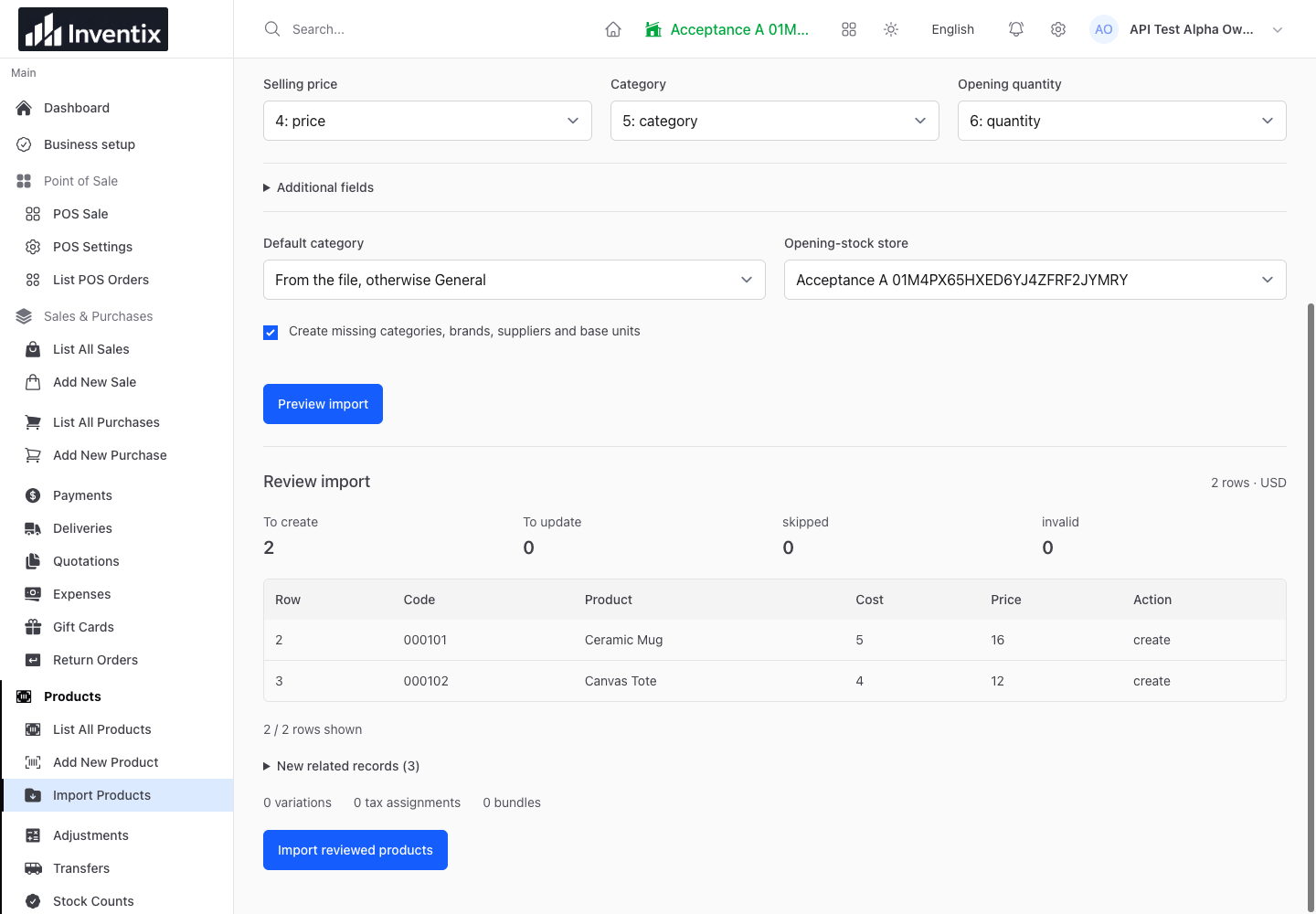
| 000101 | Ceramic Mug | 5.00 | 16.00 | 12 |
| 000102 | Canvas Tote | 4.00 | 12.00 | 8 |
The sample includes category and unit columns too. Review those against your workspace's categories and base units, or deliberately choose the available option to create missing references.
Match your columns deliberately
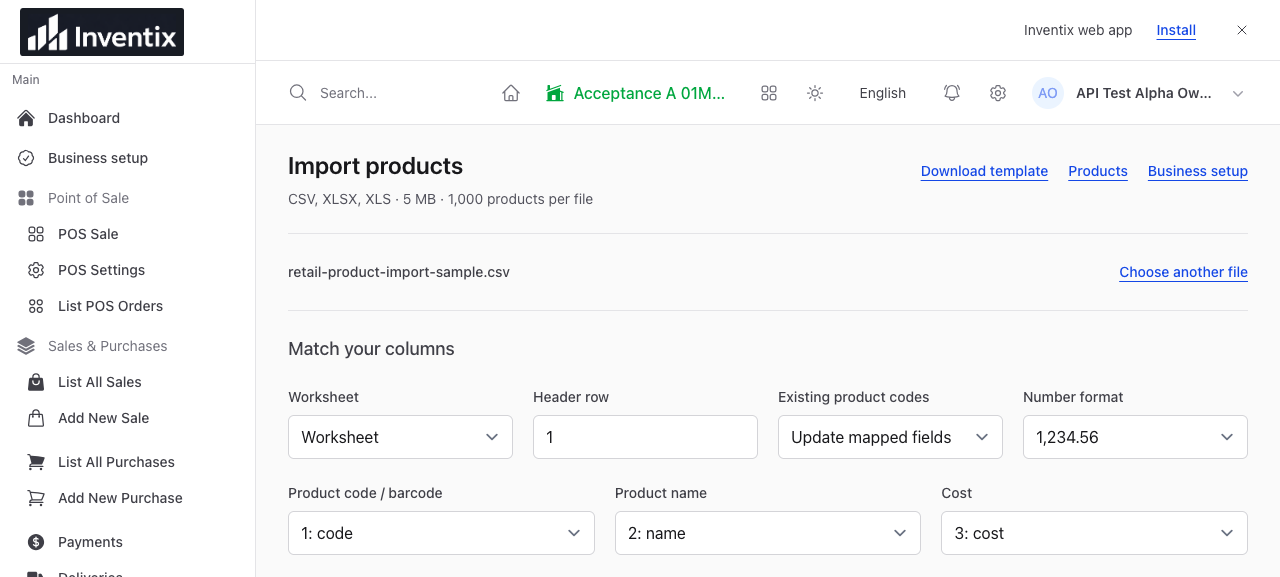
Open Products > Import Products, choose the file and continue. Select the correct worksheet, header row and number format. Match your source columns to the product fields.
Map quantity to opening quantity only when the file represents new starting stock. Select the store that actually holds it. A quantity in a spreadsheet cannot identify its location by itself.
For codes already in your catalogue, choose whether to update mapped fields, skip existing products or stop for review. Use Not imported for fields that should remain untouched. A price-only file should not overwrite an existing name, cost or stock level.
Follow the exact import screens.
Use the preview to catch mistakes
Preview the file before committing it. Check how many products will be created, updated or skipped, along with any row errors. If a number looks wrong, check decimal/thousands separators instead of assuming the importer will guess.
Try an intentionally invalid price in your test copy and confirm the preview reports a problem. Correct it, preview again and only then import. A preview is a review step, not proof that products have already been added.
Keep the file and import reference until you have checked the result. If processing is queued, wait for its result rather than uploading the same file repeatedly.
Check the products and stock after completion
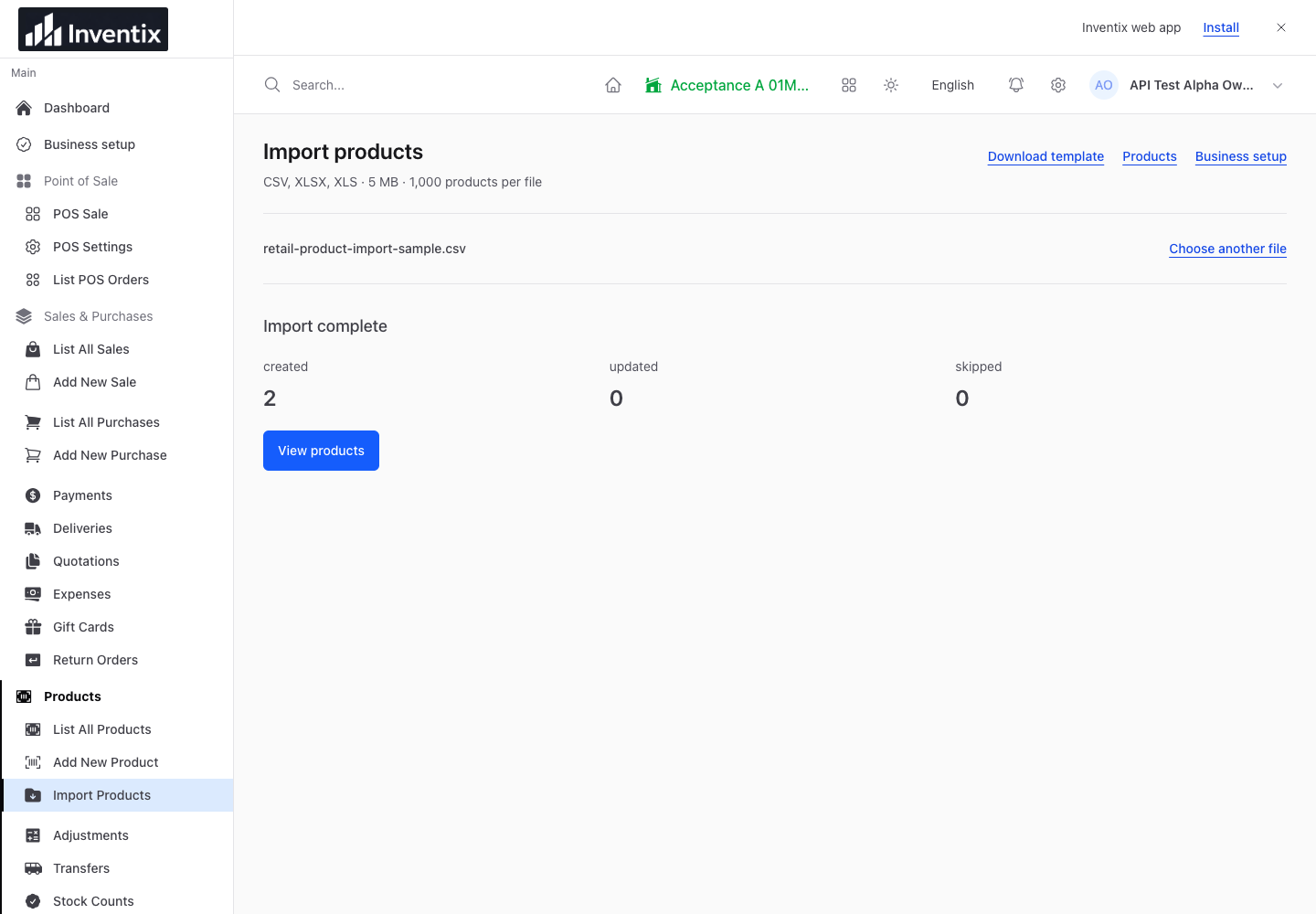
Find each sample product and compare its code, price, category and unit. In a new store using the sample opening quantities, expect 12 mugs and 8 totes before other movements. Re-running an existing-product price update should not reset those quantities.
Complete a checked sale in your test workspace and confirm the product quantity changes as expected. Remember that this creates a real business record inside that workspace, not a practice transaction excluded from its reports.
Bring over the rest without losing control
Split larger catalogues into manageable files. Keep an untouched copy of your original spreadsheet and record which batches completed. Do not advertise migration success until quantities and sale results reconcile.
Customer, supplier and stock-count imports use their own templates; they do not share the same product mapping experience. Start with store setup, then use purchasing and stock counts for later stock movements. Start your trial.